
How to Order Stock at or Below Reorder Level
Users within a specific role have the ability to reorder stock at or below re-order level, this guide will show you step by step how to do this.
Note: The minimum, re-order level and re-order qty’s must be set against each part in order for this function to work. See How to Add a Stock Item User Guide, Stock Balances tab section of the guide.
Order Stock at or Below Reorder Level
- Select the Procurement category, then Requisition:
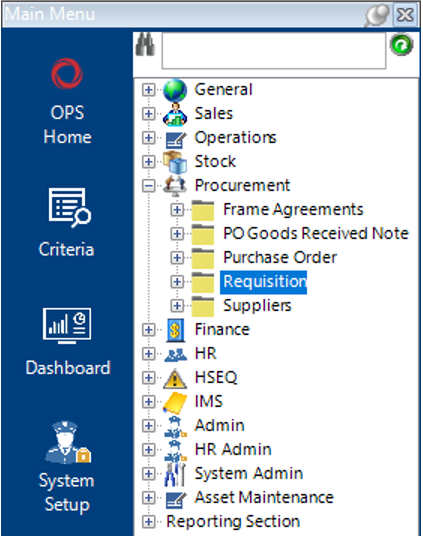
- Select New Record>Requisition or hit Insert on your keyboard.
- Fill in the relevant fields.
See How to Raise a Requisition for field explanations.
- Select Functions>Add Stock at or below reorder level.
- If there is stock that has reach the minimum reorder level then a message will appear.
Select all the stock rows you wish to add to the requisition then select Close then a message will appear.
Select Yes to continue or No to cancel the operation.
- You can view the Stock Items added to the Requisition by selecting the Requisition Items tab, the items will show in grid view:
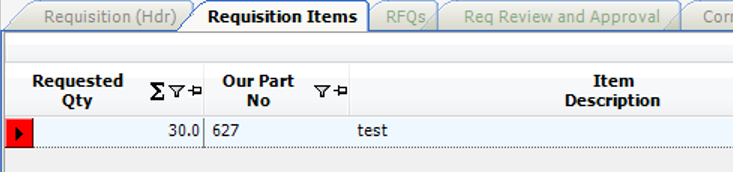
- Open the record(s) within the Requisition Items tab and fill in the required fields, see How to Raise a Requisition for field explanation.
- See the following user guides to complete the requisition and proceed to PO:
How to Review a Requisition and Request Approval
How to Approve a Requisition
How to Raise a RFQ (if applicable)
How to Raise and Send a PO