
How to Review a Requisition and Request Approval
Users within specific roles have the ability to review requisitions raised and submit for approval.
How to Review a Requisition
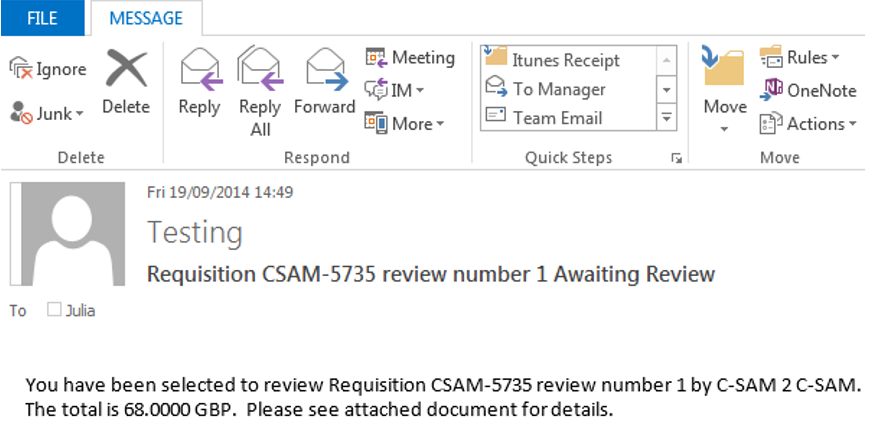
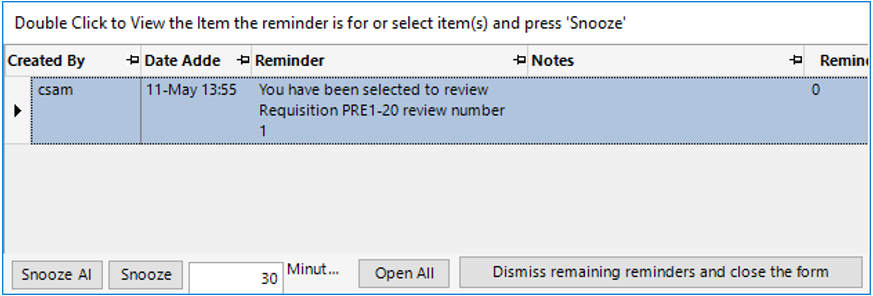
- The user who is responsible for reviewing the requisition will be sent an email and a reminder via the system as shown below:-
The email will have an excel spreadsheet attached which the user can open to review, he/she will still need to log into the system to mark this requisition as reviewed.
The reminder will pop up when the user is logged into the system, to open the record, double click on the grey area shown below:
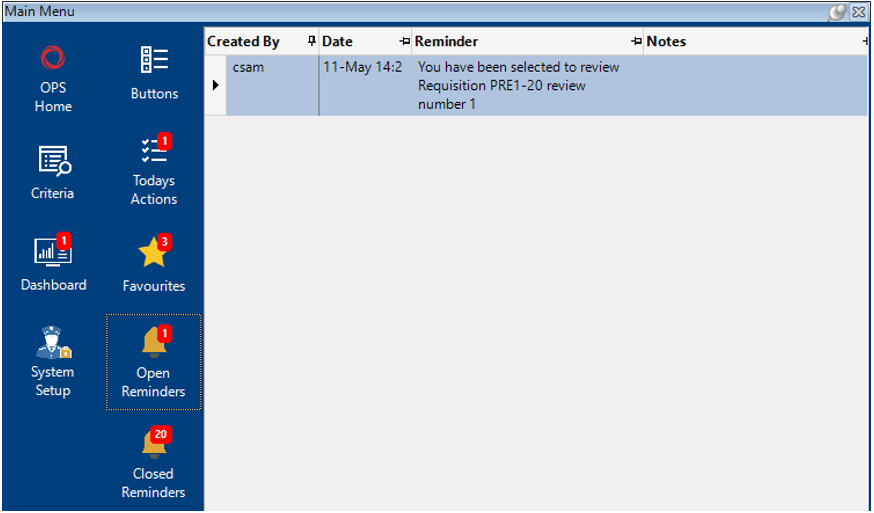
If the user Snoozes or Dismisses the reminder, you can find open reminders on the User Dashboard:
- Once you open the relevant record your screen should look as shown:
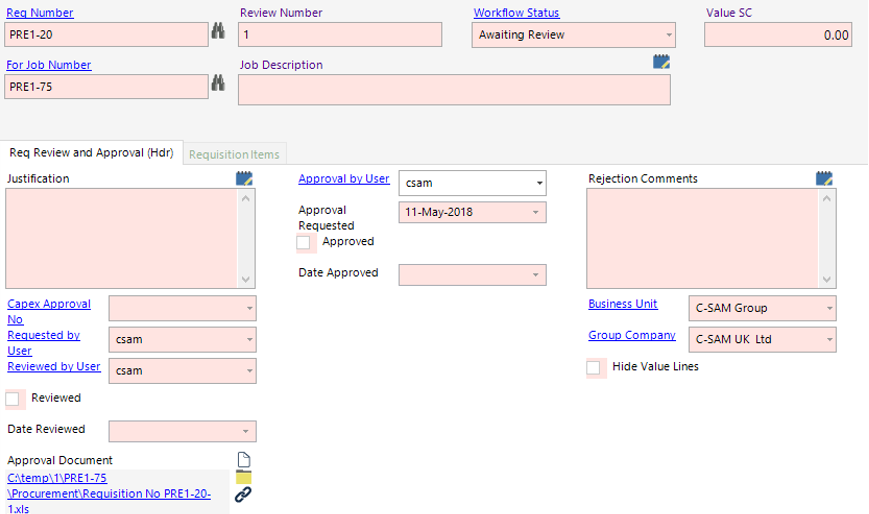
Select Functions>Review Record.
Note: If there is any information missing from the requisition, for example, a cost code or address, the system will show a window advising the user of this.
- The system will automatically ask if you wish to Request Approval.
Select Yes to continue, select No to manually request approval.
Note: To request approval for a Requisition manually, select Functions>Request Approval.