
How to Add a Stock Item
Users within specific roles have the ability to add new stock items to the system.
Locate the Stock Dataset
- Select the Stock category then Stock:
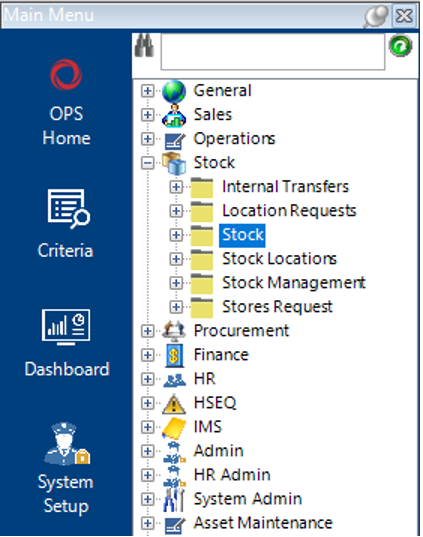
- From the toolbar select New Record>Stock or hit Insert on your keyboard to create a new record.
- Complete the relevant fields relating to the new stock item.
Note: (Pink = System Generated, Blue = Mandatory):
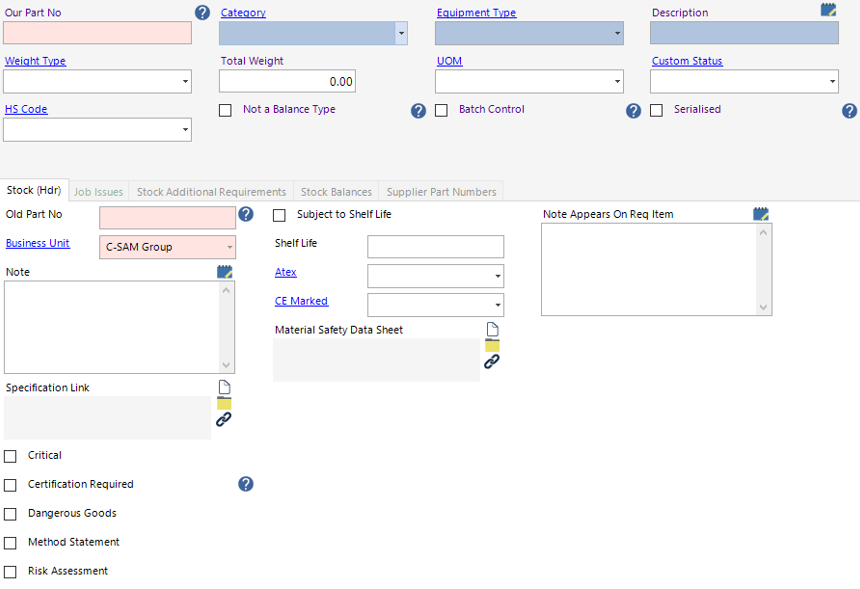
| Field | Description |
|---|---|
| Category | Select the item category |
| Equipment Type | Select the equipment type |
| Description | Text field, enter a description of the new stock item |
| Weight Type | Select the weight type, i.e, Kg, Lbs, or Tonne etc. |
| Total Weight | Enter the total weight of the new stock item |
| UOM | Unit of Measure, i.e, 10 Pack, Box of 10 etc. |
| Custom Status | Select the relevant custom status of the new stock item |
| HS Code | Select the relevant HS code for the new stock item |
| Not a Balance Type (Tickbox) | Check this if the new stock item is not a balance type |
| Batch Control (Tickbox) | Check this if the new stock item is a batch control type |
| Serialised (Tickbox) | Check this if the new stock item is a serialised type |
| Stock (Hdr) | |
| Business Unit | Defaulted from users Business Unit, is changeable |
| Note | Text field for notes |
| Specification Link | Can link a file/folder/webpage with the new stock specs |
| Critical (Tickbox) | Check this is the new stock item is classed as a critical item |
| Certification Required (Tickbox) | Check this if the new stock item requires certification |
| Dangerous Goods (Tickbox) | Check this if the new stock item is classed as a dangerous good |
| Method Statement (Tickbox) | Check this if the new stock item requires a method statement |
| Risk Assessment (Tickbox) | Check this if the new stock item requires a risk assessment |
| Subject to Shelf Life (Tickbox) | Check this if the new stock item has a shelf life (use by date) |
| Shelf Life | Enter the amount of shelf life days for the stock item |
| Atex | Select Yes/No (if applicable) |
| CE Marked | Select Yes/No (if applicable) |
| Material Safety Data Sheet | Can link a file/folder/webpage with the new stock MSDS |
| Note Appears on Req Item | If you enter data here, it will show on the requisition |
Note: If you have checked any of the following tickboxes, you will need to add data to the Stock Additional Requirements tab:
Certification Required
Method Statement
Risk Assessment
Stock Additional Requirements Tab
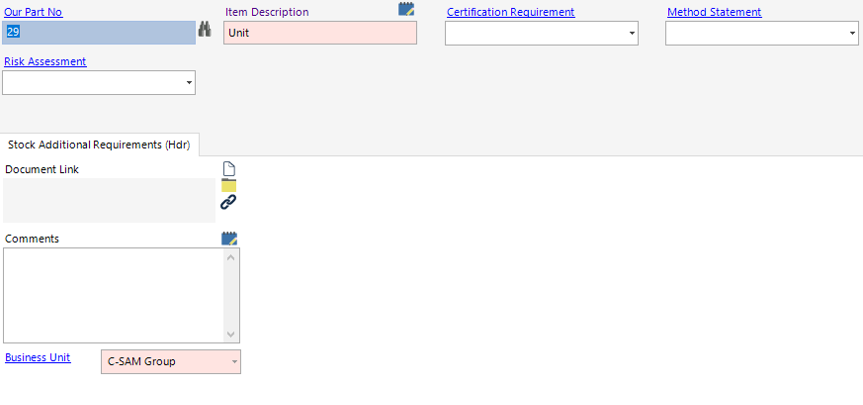
- Select New Record>Stock Additional Requirements, or select the Stock Additional Requirements tab and hit Insert on your keyboard.
Fill in all relevant fields.
Note: (Pink = System Generated, Blue = Mandatory):
| Field | Description |
|---|---|
| Our Part No | This will default from the main screen but can be changed |
| Certification Required | Select the type of certificate the new stock item requires |
| Method Statement | Select the type of method statement for the new stock item |
| Risk Assessment | Select the type of risk assessment for the new stock item |
| Stock Additional Requirements (Hdr) | |
| Document Link | Can link a file/folder/webpage to the record |
| Comments | Text field to record any comments relevant to the new item |
| Business Unit | This will default from the main screen but can be changed |
Note: You can add multiple requirements to a stock item, select Next from the toolbar and follow Step 4.
Stock Balances Tab
Note: The Stock Balances tab allows the user to define the physical location and order/re-order level.
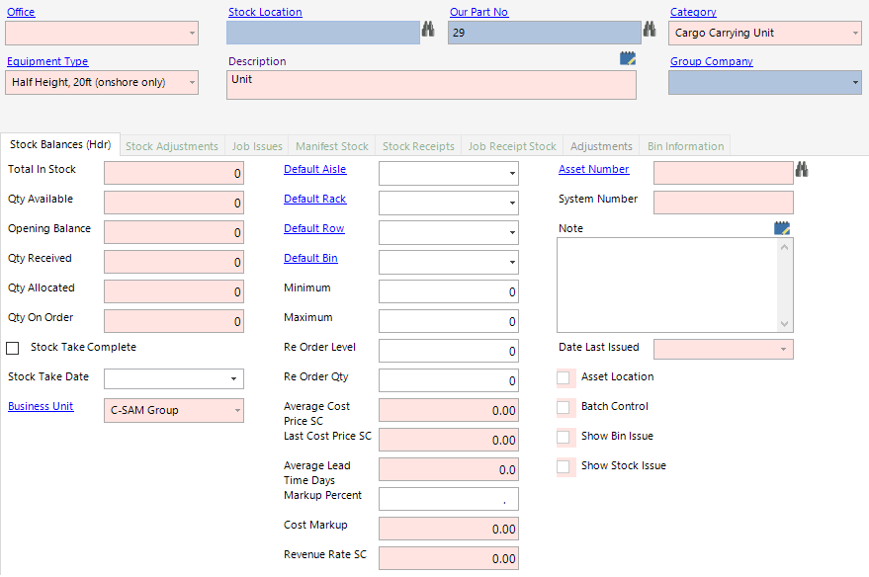
- Select New Record>Stock Balances, or select the Stock Balances tab and hit Insert on your keyboard.
Fill in all relevant fields.
Note: (Pink = System Generated, Blue = Mandatory):
| Field | Description |
|---|---|
| Stock Location | Select the stock location the new stock item will be held in |
| Our Part No | Defaulted |
| Stock Balances (Hdr) | |
| Stock Take Complete (Tickbox) | Check this if related to a stock take |
| Stock Take Date | Enter the date of the stock take if applicable |
| Business Unit | Defaulted to the users Business Unit |
| Default Aisle | You can assign a default aisle location |
| Default Rack | You can assign a default rack location |
| Default Row | You can assign a default row location |
| Default Bin | You can assign a default bin location |
| Minimum | Enter the value of minimum qty required in stock. |
| Maximum | Enter the value of maximum qty required in stock. If you enter a quantity on a requisition that exceeds the maximum, the system will prompt you with a message to indicate you are ordering above the maximum set. |
| Re Order Level | Enter the value of re order level. When the re-order level is reached the system will add the stock part onto the users DASHBOARD button providing you are in the Stores role. You can also run the function within the Requisition to "Select Stock at or below reorder level" |
| Re Order Qty | Enter the value of re order qty. This is the quantity that you would re-order for this part at requisition time. |
| Markup Percent | Enter a percentage value if a markup price is to be applied |
| Note | Text field for additional notes |
Select Close to return to the Stock dataset.
Supplier Part Numbers
Note: The supplier part numbers tab is used to define a supplier ref number against your ref number. This tab is only used for 3rd party stock items which need to be purchased from a supplier.
- Select New Record>Supplier Part Numbers, or select the Supplier Part Numbers tab and hit Insert on your keyboard.
Fill in all relevant fields.
Note: (Pink = System Generated, Blue = Mandatory):
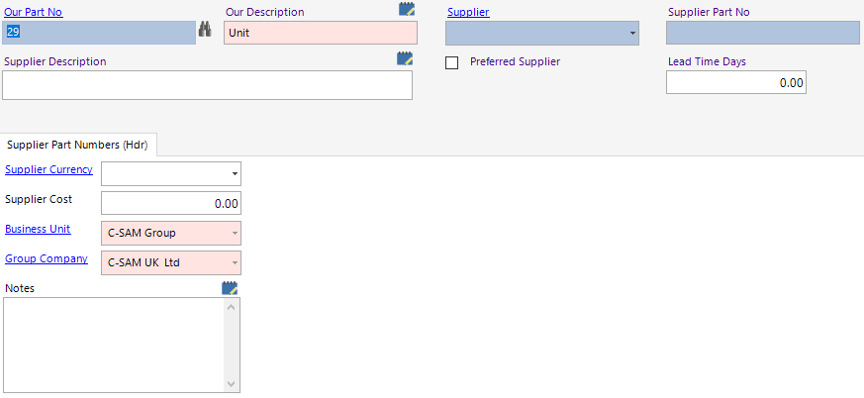
| Field | Description |
|---|---|
| Our Part No | System Generated |
| Supplier | Select the relevant supplier from the drop down menu |
| Supplier Part No | Enter the supplier part number reference |
| Supplier Description | Enter the description used by the supplier |
| Preferred Supplier (Tickbox) | Check this if the supplier is the preferred option |
| Lead Time Days | Enter lead time days if known |
| Supplier Part Numbers (Hdr) | |
| Supplier Currency | Select the currency used by the supplier |
| Supplier Cost | Enter the supplier cost |
| Business Unit | Defaulted |
| Group Company | Select the relevant group company |
| Notes | Text field for additional information |
Adding a Balance to a New Stock Item
Once you have added the new stock item into the database, you will need to assign qty’s to allow users to reserve the stock against jobs.
See How to Create and Complete a Stock Management Record
Note: For new stock, you will need to use the Opening Balance for the Transaction Type.