How to Add Enquiry Items and Rates - Stock
Enquiry Items are used for entering stock onto the enquiry. This will populate the quotation and will be pulled onto the job when it is created.
Add Stock to an Enquiry
- An Enquiry record must be entered into the system before enquiry items can be added. See How to Create an Enquiry.
- Enter the equipment (STOCK) required for the job in Enquiry Item by either clicking on the tab and using the Insert Key on your keyboard or by going to New Record>Enquiry Items.
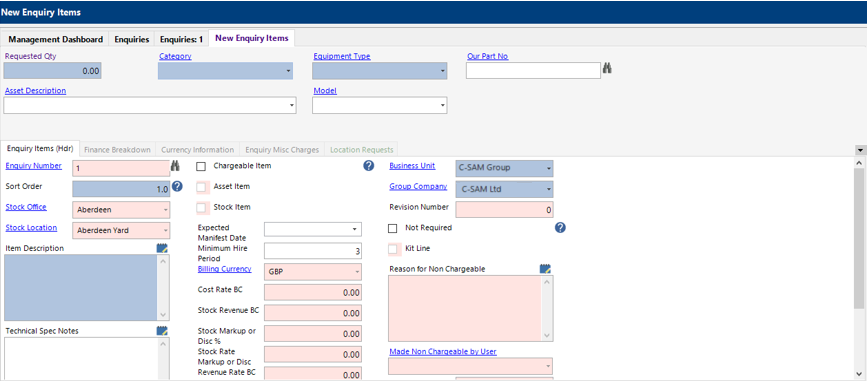
- Complete the relevant fields on the Enquiry Item (hdr).
Note: (Pink = System Generated, Blue = Mandatory):
| Field | Description |
|---|---|
| Requested Qty: | Enter the total qty required for the Stock |
| Our Part No.: | Click on the binocular symbol and search for the stock item required OR enter the stock part number directly into the field. |
| Category: | The appropriate stock Category will be populated when the Our Part No is selected. |
| Enquiry Type: | The appropriate stock Equipment Type will be populated when the Our Part No is selected. |
| Asset Description: | Do not enter |
| Model: | Do not enter |
| Enquiry Items (Hdr) | |
| Sort Order: | This will automatically update with every record you add, however, this can be amended to show in a different order if required |
| Item Description: | This will be populated by the system with the Stock description when Our Part No is selected |
| Technical Spec Notes: | Text field to record any technical specifications if required. |
| Sale or Return (Tickbox): | Check this box if the part is a sale or return item |
| Chargeable: | Tick the chargeable tick box |
| Stock Item: | This will be populated by the system based on the Equipment Type Selected |
| Expected Manifest Date: | Select the relevant date from the calendar, this will be populated from the enquiry header if it has been set. |
| Minimum Hire Period: | This will be defaulted from the Enquiry header, if not, set to 1 for stock items |
| Not Required (Tickbox): | Check this box if the item is no longer required |
How to enter Stock Cost and Revenue
- The following fields will only be opened by the system if the stock type tick box is set.
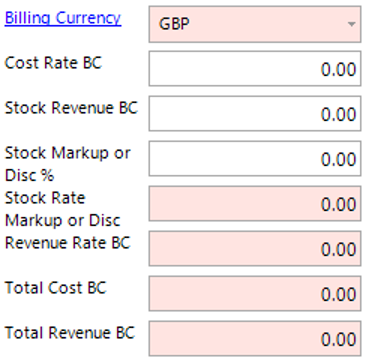
Enter the Stock Cost and Revenue values (hdr).
| Field | Description |
|---|---|
| Cost Rate BC: | Enter the Cost value of the Stock |
| Stock Revenue: | Enter the Value you will charge this item at |
| Stock Mark Up or Disc %: | Enter a whole or minus value to mark up/discount the Revenue Rate |
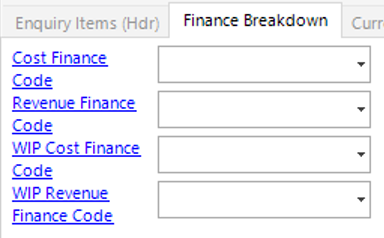
- Select the Finance Breakdown tab. This will show the default financial codes for the stock item if set, fill in the fields if system has not populated them:
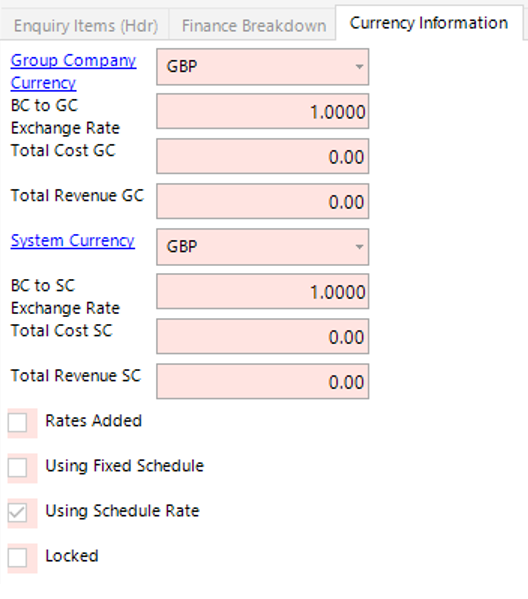
- Select the Currency Information tab, this shows the Enquiry Item total in Group Company Currency and System Currency:
You can add multiple lines to the Enquiry Items dataset, either Select Next from the toolbar or select Close from the Toolbar to return to the Enquiries dataset.
- If Equipment, Personnel or Miscellaneous Charges are required on the enquiry, see:
How to Add Enquiry Items and Rates – Equipment
How to Add Personnel Requirements and Rates – Enquiry
How to Add Enquiry Misc Charges
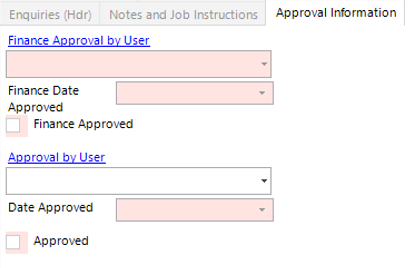
- Enter the ‘Approval by User’ on the Approval Information tab. From the toolbar Select Functions > Request Approval.