
How to Complete a Requisition Import Sheet
Users can complete an excel spreadsheet to import requisitions into the system.
The mandatory field options must match options within the system.
- Open the Req Import excel spreadsheet:
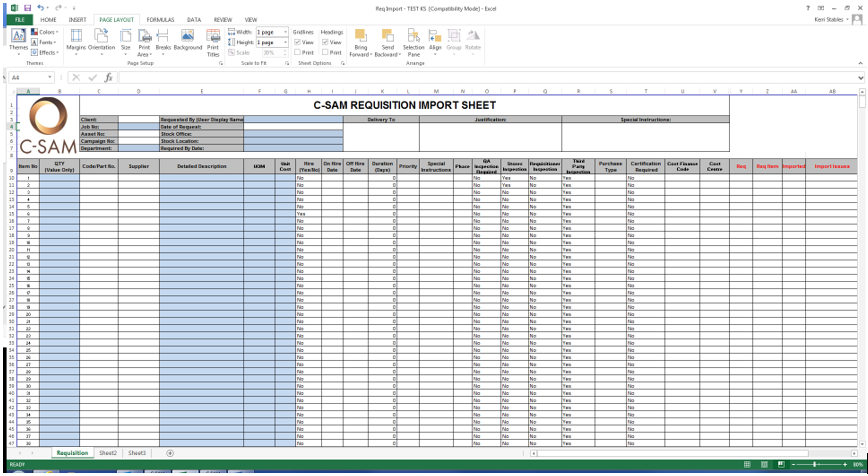
Note: The cells highlighted in Blue indicate that these are mandatory. The import will not be successful if these are not entered.
- Beginning with the header, fill in the mandatory cells and any other relevant cells.
Note: (Pink = System Generated, Blue = Mandatory):

| Field | Description |
|---|---|
| Client | Enter the name of the client for the job you are working on (if applicable) |
| Job No | Enter the Job Number |
| Asset No | Enter the Asset Number (if applicable) |
| Campaign No | Enter the Campaign Number (if applicable) |
| Department | Enter the relevant Department |
| Requested By | Enter the ‘Requested By User’ name as it exists in the system |
| Date of Request | Enter the relevant date |
| Stock Office | Enter the relevant Stock Office |
| Stock Location | Enter the relevant Stock Location |
| Required By Date | Enter the relevant date |
| Delivery To | Enter the relevant address |
| Justification | Enter relevant justification information |
| Special Instructions | Enter the relevant special instructions (if applicable) |
- Fill in the remainder of the excel spreadsheet to list the parts/items required on the requisition.
Note: (Pink = System Generated, Blue = Mandatory):

| Field | Description |
|---|---|
| Item No | Column to show numeric order on the sheet |
| Qty | Enter the qty required |
| Code/Part No. | Enter the part number for the part/asset required |
| Supplier | Enter the name of the supplier of the part/asset |
| Detailed Description | Enter a detailed description of the part/asset |
| UOM | Enter the unit of measure of the part/asset, each/10 pack etc. |
| Unit Cost | Enter the unit cost of the part/asset |
| Hire (Yes/No) | Select Yes if the part/asset is hired, leave as No if not a hire |
| On Hire Date | Enter the on hire date (if applicable) |
| Off Hire Date | Enter the off hire date (if applicable) |
| Duration (Days) | Enter the duration of days (if applicable) |
| Priority | Enter the priority level for the part/asset |
| Special Instructions | Enter any special instructions (if applicable) |
| Phase | Enter the relevant phase (if applicable) |
| QA Inspection Required | Select the relevant option (Yes/No) |
| Stores Inspection | Select the relevant option (Yes/No) |
| Requisitioner Inspection | Select the relevant option (Yes/No) |
| Third Party Inspection | Select the relevant option (Yes/No) |
| Purchase Type | Enter the relevant purchase type (if applicable) |
| Certification Required | Select the relevant option (Yes/No) |
| Cost Finance Code | Enter the relevant finance code (if applicable) |
| Cost Centre | Enter the relevant cost centre (if applicable) |
| Req | This cell will automatically update when Import Function is run in the system |
| Req Item | This cell will automatically update when Import Function is run in the system |
| Imported | This cell will automatically update when Import Function is run in the system |
| Import Issues | This cell will automatically update when Import Function is run in the system |
4: Save the excel file to be used in the Import Function in the system, see How to Import a Requisition.