
How to Create and Complete a Stock Management Record
The Stock Management dataset is used to adjust the balances of stock and add an opening balance.
Locate the Stock Management Dataset
- Select Stock category, then Stock Management:
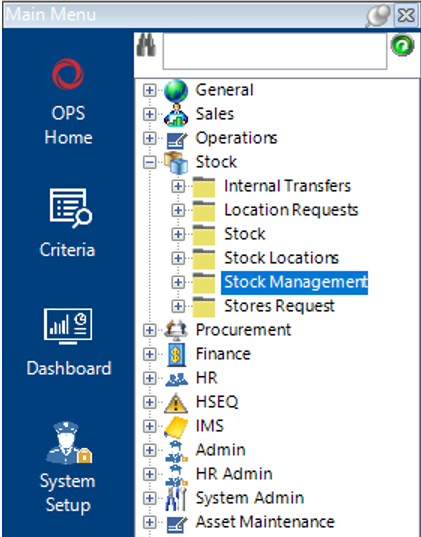
- Select New Record>Stock Management or hit Insert on your keyboard.
- Complete the field(s) required.
Note: (Pink = System Generated, Blue = Mandatory):
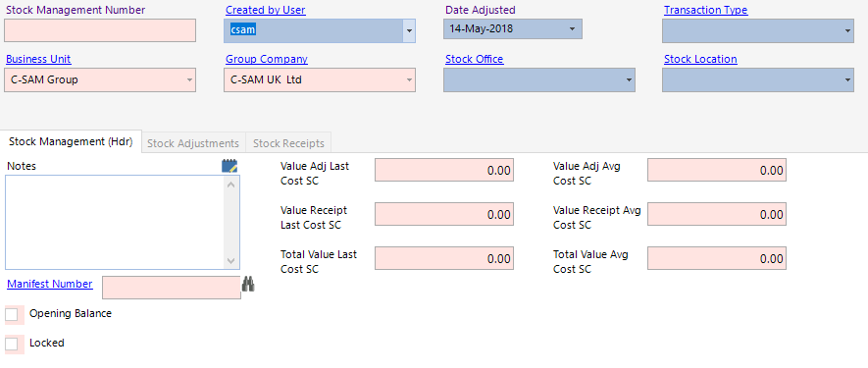
| Field | Description |
|---|---|
| Created By User | This will default to the user logged in |
| Date Adjusted | This will default to today’s date |
| Transaction Type | Adjustment/Stock Take for example, if you select Opening Balance the only tab you should see is the Stock Receipts, see Step 10 |
| Business Unit | Defaulted to the users Business Unit, however is changeable |
| Group Company | Defaulted to the users Group Company, however is changeable |
| Stock Office | Select the stock office the goods will be stored in |
| Stock Location | Select the stock location the goods will be stored in |
| Stock Management (hdr) | |
| Notes | Text field to store additional information on the record |
Add a Stock Adjustment Record
This tab allows the user to modify the qty assigned to a specific location. For example, if the stock balance in the system of Part No 622 in the Altens Office, Graphix House location is 20 and a stock take verifies that the actual qty is 18. This tab is where you will go within the database to amend the available qty.
- Select New Record>Stock Adjustments or select the Stock Adjustments tab and hit Insert on your keyboard.
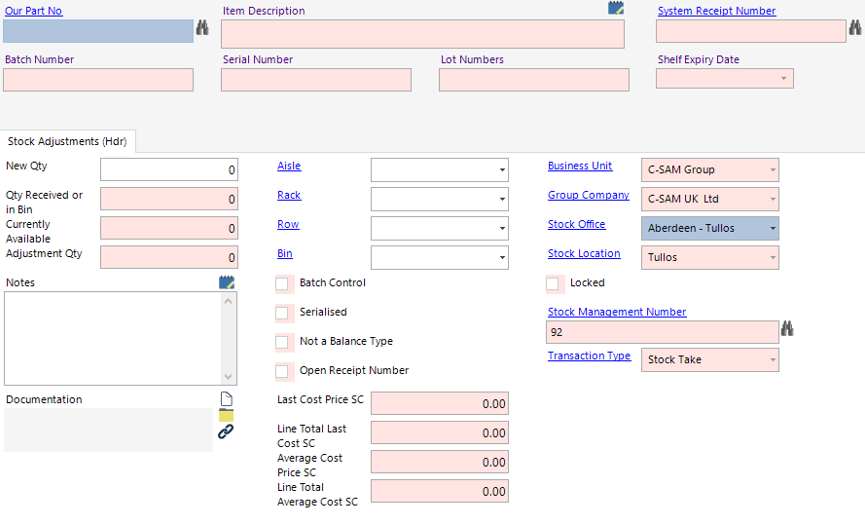
- Enter the relevant part number into the Our Part No field, or use the binoculars to search for the part number:
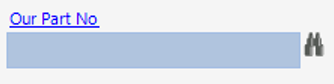
- Enter the new qty into the New Qty field:
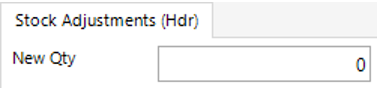
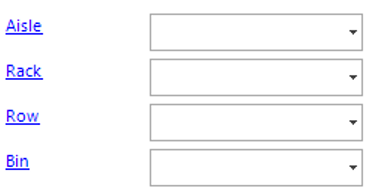
- Select an Aisle, Rack, Row and Bin Location (These must match the current location details of the Stock number you’re adjusting):
- The system will calculate the adjustment values as shown:
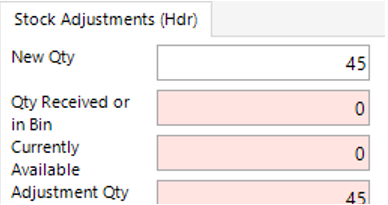
Select Save, then Close to return to the Stock dataset.
Note: Select Next to create additional Stock Adjustment records.
- Select Functions>Complete to verify the adjustment.
Select Yes to continue or No to cancel the operation.
Add a Stock Receipts Record
This tab allows the user to receipt in additional qty’s to a specific location. For example, if there are a qty of 20 of part number 622 received, the user will create a stock receipt to record the additional items.
- Select New Record>Receipts or select the Stock Reciepts tab and hit Insert on your keyboard.
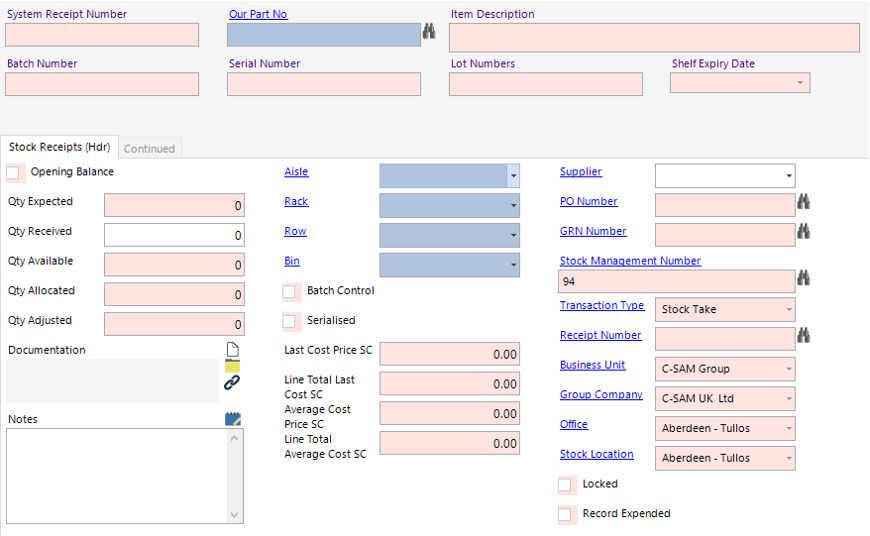
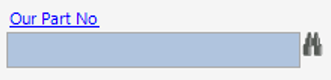
- Enter the relevant part number into the Our Part No field, or use the binoculars to search for the part number:
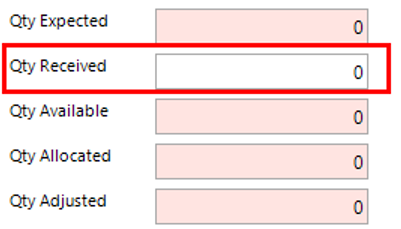
- Enter the value received in the Qty Received field:
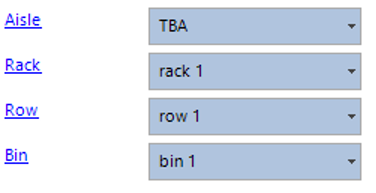
- The system will automatically default the Aisle, Rack, Row and Bin locations, however these fields can be amended if required:
Select Close to return to the Stock dataset.
- Select Functions>Complete.
Select Yes to continue or No to cancel the operation.