
How to Create a Service and Repair Enquiry
Enquires can be logged in the C-SAM system for tracking. A basic Enquiry will be logged for service and repair jobs but the quotation will be created from the Job Details dataset.
How to Log an Enquiry
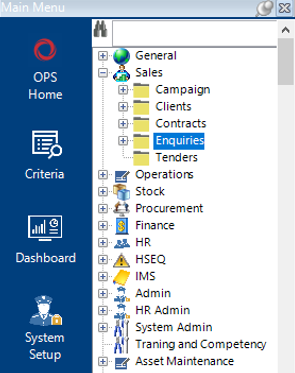
- Go to the Sales category folder in the main menu and select Enquiries:
- Create a new record by selecting New Record>Enquiries or by using your Insert key on your keyboard.
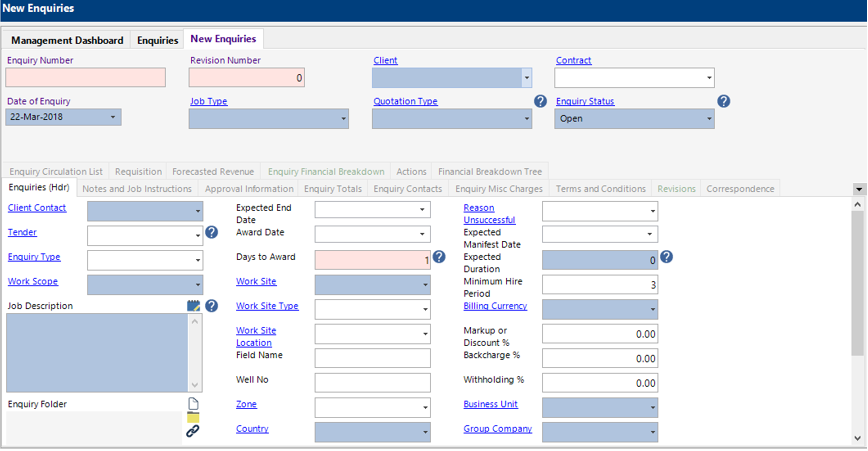
- Complete the relevant fields on the Enquiry (hdr).
Note: (Pink = System Generated, Blue = Mandatory):
| Field | Description |
|---|---|
| Client: | Select appropriate Client (if not in the list add new Client) |
| Contract: | Select appropriate Contact (if not in the list, add new Contact) |
| Date of Enquiry: | Defaults to today’s date, change if required. |
| Job Type: | Select appropriate Job Type (this will affect the related datasets that are available to use) |
| Quotation Type: | Select appropriate Quotation Type |
| Enquiry Status: | Defaulted to Open |
| Enquiry Type: | Select appropriate Enquiry Type |
| Prospect Rating: | Select appropriate prospect rating (Hot, Warm, Cold for example) |
| Likelihood: | Select a likelihood % (use whole values where possible for reporting) |
| Expected Start Date: | Enter Expected Start Date of the Job |
| Expected End Date: | Enter Expected End Date of the Job |
| Submission Date: | Defaulted when the ‘Email Enquiry’ function is run |
| Award Date: | When Create job function is run the system will prompt you to enter the award date |
| Worksite: | Select appropriate worksite where equipment will be held (vessel name, platform etc.) |
| Zone: | Select appropriate Zone requirement |
| Country: | Select the Country the work will be carried out in |
| Finance Approval Req: | Locked field, set by the Country |
| Client Contact: | Select appropriate contact |
| Contact Phone: | This will be looked up from the Contact details |
| Contact Email: | This will be looked up from the Contact details |
| Job Description: | Enter a brief job description |
| Client Project: | Enter Client Project Number or Reference if required |
| Received By: | This will default to the added user, change if required |
| Responsible Owner User: | This will default to the added user, change to the Job Responsible User |
| Reason Unsuccessful: | Enter appropriate reason for reporting purposes |
| Enquiry Folder: | An enquiry folder will be created automatically and linked will be defaulted |
| Expected Manifest Date: | Enter first Expected Manifest date for the Job if successful |
| Expected Duration: | Enter appropriate Expect Duration of the Job |
| Minimum Hire Period: | This field can be defaulted by Group Company settings, user changeable if required |
| Billing Currency: | Enter appropriate Billing Currency for the Enquiry (this will be locked after initial enter) |
| Mark-up or Discount %: | Enter % Mark-up or Discount to be applied to all rates (e.g. -10% or 10%). Function to be run to apply. |
| Backcharge %: | Enter appropriate backcharge % for re-chargeable PO’s. |
| Withholding % | Enter appropriate withholding tax % if applicable |
| Business Unit: | Defaulted to the Users Business Unit |
| Group Company: | Defaulted to the Users Group Company |
| Stock Office: | Select appropriate Stock Office (main office related to the Stock Locations for the job) |
| Stock Location: | Only required for Job Type with Equipment, select the appropriate Stock Location for the Job. If Equipment is coming from multiple locations, pick the main one. |
| Enquiry Office: | Select appropriate Enquiry Office (Office in which the Enquiry is raised) |
The following tabs on the Enquiry contain additional fields and information, see below:
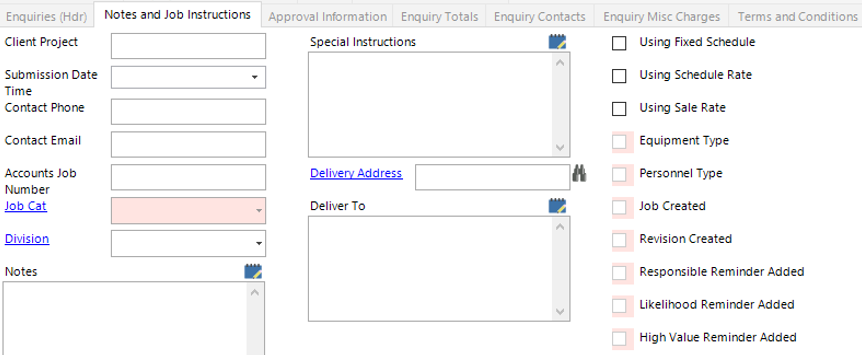
Notes and Instructions is where additional information about the Enquiry can be entered the tick box settings of the Enquiry (defaulted by the enquiry settings selected):
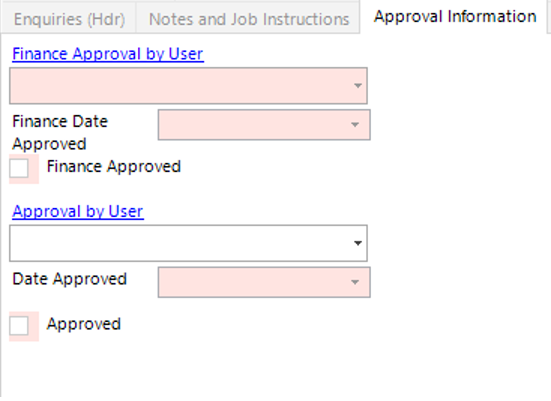
Approval Information where the user can select a user to approve the Enquiry. If the desired user is not in the list they do not have the access to approve Enquires.
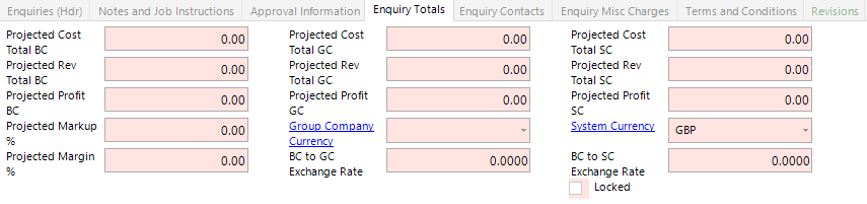
Enquiry Totals shows the overall totals of the Enquiry in Group Company Curreny (GC) and System Currency (SC).
- Next enter the equipment that has come in for service and Repair (ASSET) into the Enquiry Item by either clicking on the tab and using the Insert Key on your keyboard or by going to New>Enquiry Items.
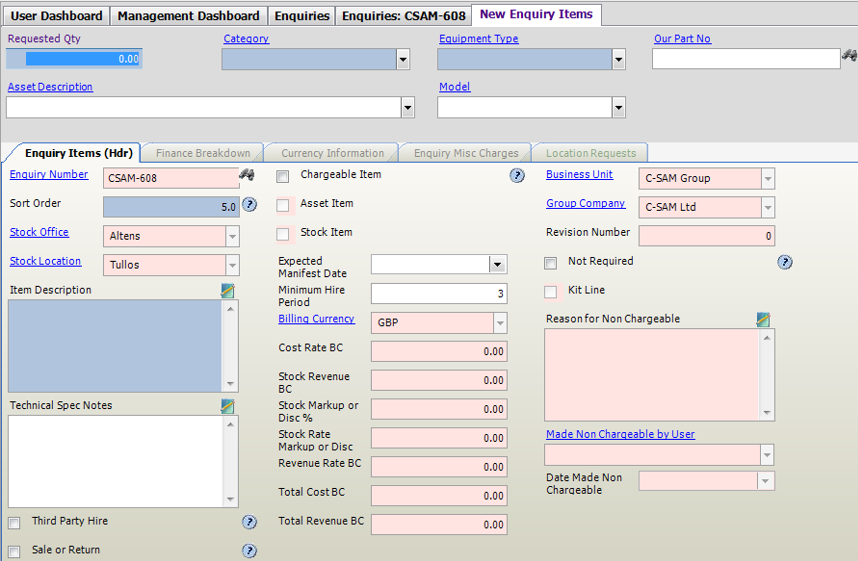
- Complete the relevant fields on the Enquiry Item (hdr):
Note: (Pink = System Generated, Blue = Mandatory):
| Field | Description |
|---|---|
| Requested Qty: | Enter the total quantity received for each Asset |
| Category: | Select the appropriate equipment Category |
| Equipment Type: | Select the appropriate equipment type |
| Our Part No: | Manually enter the part number or use the binoculars to search. If this field is populated first the system will automatically populate the Category and Equipment Type |
| Asset Description: | Select the appropriate asset description (If the Asset Description is entered prior to the Category and Equipment type the system will backfill these fields and they will not have to be manually selected) |
| Model: | Select the appropriate Model if required |
| Enquiry Items (Hdr) | |
| Sort Order: | This will automatically update with every record you add, however, this can be amended to show in a different order if required |
| Item Description: | This field will be populated with the asset description and will appear on the reports. This is user changeable. |
| Technical Spec Notes: | Text field to record any technical specifications if required |
| Third Party Hire (Tickbox): | Check this box if the part is third party hired |
| Sale or Return (Tickbox): | Check this box if the part is a sale or return item |
| Chargeable (Tickbox): | Check this box if the part is chargeable to the client |
| Asset Item (Tickbox): | This will populate if the part is an asset type |
| Stock Item (Tickbox): | This will populate if the part is an item type |
| Expected Manifest Date: | Select the relevant date from the calendar |
| Minimum Hire Period: | Enter the value of days (if applicable) |
| Not Required (Tickbox): | Check this box if the item is no longer required |
- Enter the Asset Number (if known) which has been received, you do not need to enter the asset number to complete the enquiry, proceed to Step 7 if you do not wish to assign serial numbers at this stage.
If the Asset already exists in the system continue to step 6.1.
If the Asset does not exist in the system continue to step 6.2.
6.1. From the Enquiry Item record, click on the Manifest Asset Tab:
Either enter the Asset Number into the grid if known, you do not need to enter the asset number to complete the enquiry. Once the Asset Number is entered into the field, close the Enquiry Item and go back to the Enquiry (Hdr).

Note: If no results are shown within the Manifest Assets tab, select the Location Request tab and enter a value into the Qty Required from Location field against any line, select Refresh/Save and check the Manifest Assets tab to verify you have a record to input an Asset Number.

6.2 (If the asset does not exist) Select Functions>Create Asset.
Select Yes to continue or No to cancel the operation for each dialog box.
The New Asset Details Screen will now open:
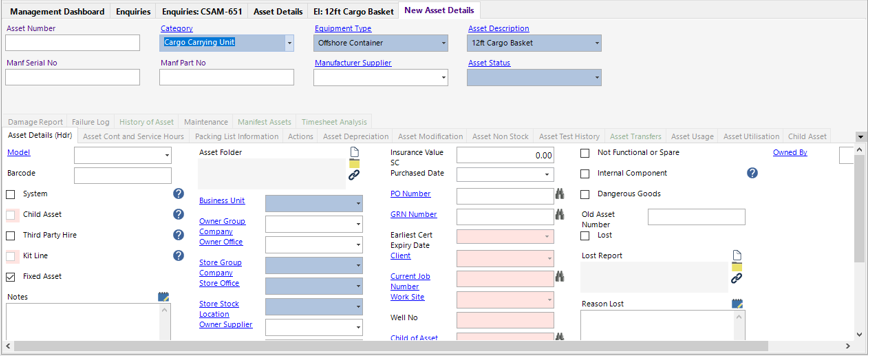
Enter the mandatory and key information.
Note: If the Asset is owned by your client ensure that you do not input any data into the Owner Group Company and Owner Office. Instead you must populate the Owner Client field with the Client’s details.
You may not want to select Available against the Asset Status as this may allow another user to assign your asset to their enquiry/job.
Save the Asset Details record, return to your Enquiry, select Functions>Re Check Qty Available at Location function.
This will add a new Location Request to your Enquiry Items record, you can now set the Qty Required from Location and the system will add the Manifest Asset records for you.
Return to step 6.1 and assign the added asset number. If required, see How to Add Assets user guide.
- You can add a Miscellaneous Charge (e.g. Initial Inspection Fee, Repair Cost) by either clicking on the Enquiry Misc Charges tab and using the Insert key on your keyboard or by going to New Record>Enquiry Misc Charges.
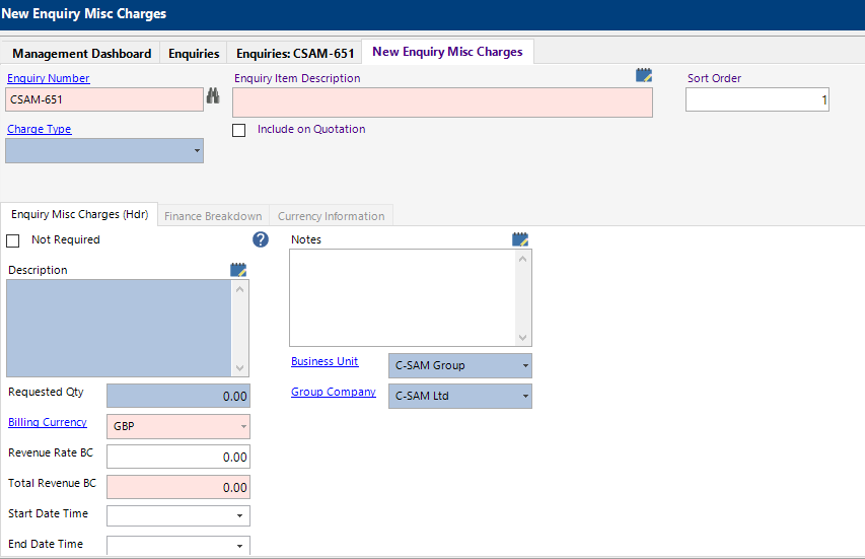
You can add multiple records by using the Next button on the toolbar.
- If all information has been entered for the enquiry you can request approval for the enquiry.
From the main Enquiries screen, select the Approval Information Tab and enter/verify the Approval by User field Select Functions>Request Approval.