Fixed Assets & Depreciation
If you want to depreciate an asset, it must be set up in the system as a fixed asset. This will allow you to run monthly deprecation using either straight-line deprecation or reducing balance deprecation. You can choose against the asset description which method of deprecation you want to apply to the asset.
Creating a Fixed Asset
There are two options for setting up fixed assets:
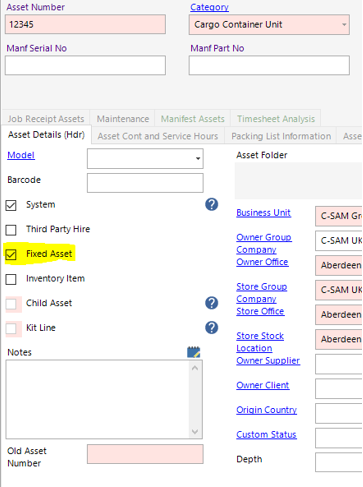
- Ticking the Fixed Asset box at the Asset level on the Asset Details datasets will make that individual asset a fixed asset.
- Alternatively, you can tick the Fixed Asset box against the Asset Description dataset and any new asset you add with that description will be marked as a fixed asset.
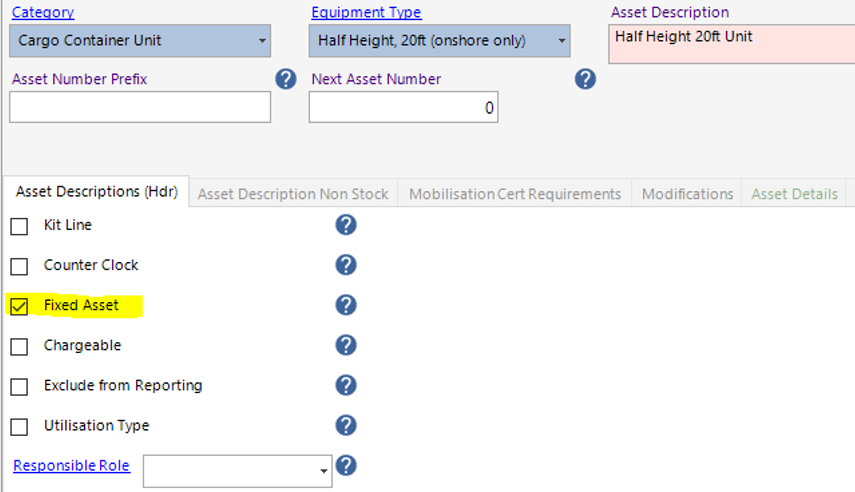
Note: Note: Ticking the Fixed Asset box on the Asset Description dataset will not update any existing assets that have that asset description.
Sold Assets and Disposed assets will be excluded from any future depreciation runs.
Setting up Depreciation
Straight Line or Reducing
The system can depreciate assets using straight line or reducing balance types of depreciation. This can be configured for each group company against each individual asset description.
Straight Line
This is the simplest and most commonly used depreciation method. It is calculated by subtracting the ‘salvage/scrap value’ (the price it can be sold at when it is no longer of use to the company) of an asset from the original purchase price and then dividing it by the total number of years it is expected to be a useful asset for the company – it’s ‘useful life’. This method results in the same depreciation amount being spread evenly over the course of the asset’s useful life.
Straight-line depreciation = (cost of asset – estimated salvage value) ÷ estimated useful life of asset
Reducing
Reducing balance depreciation – also known as declining balance depreciation – is a method of calculating depreciation whereby an asset is expensed as a set percentage. To calculate reducing balance depreciation, you will need to know:
- Asset cost – the original value of the asset and any additional costs to get the asset ready for its intended use.
- Residual value – also known as salvage value, this is the value of the asset once it reaches the end of its useful life.
- Depreciation factor –this correlated to the percentage the asset will depreciate by each month. For example, 2 is 200%, 0.5 is 50%.
Once the system has this information it will follow two steps:
- Step 1: Calculate the depreciation charge by using the following formula: Depreciation charge per year = (book value – residual value) x depreciation factor
- Step 2: Subtract the depreciation charge from the current book value to calculate the remaining book value.
Group Company Dataset
Against the group company, you can set up Deprecation Defaults. This is very useful if you depreciate all fixed assets using the same method over the same period.
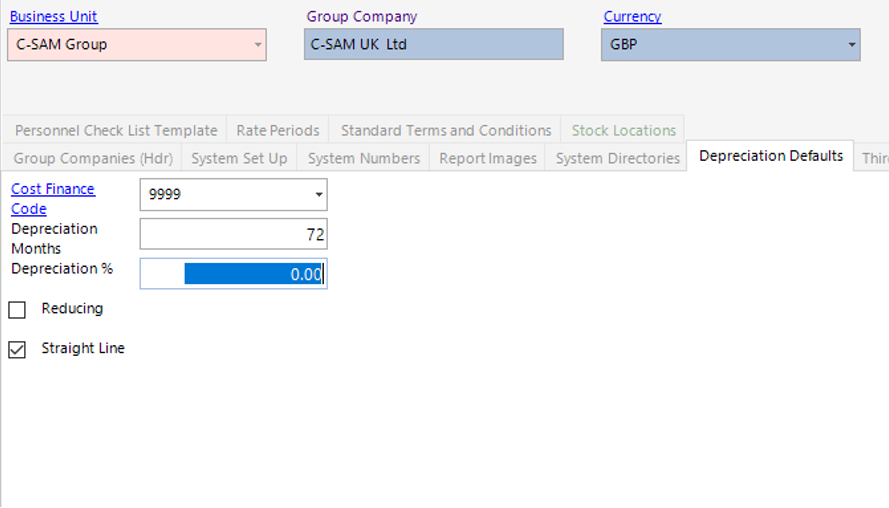
You can still override any of this information at the asset description level if required.
Asset Descriptions
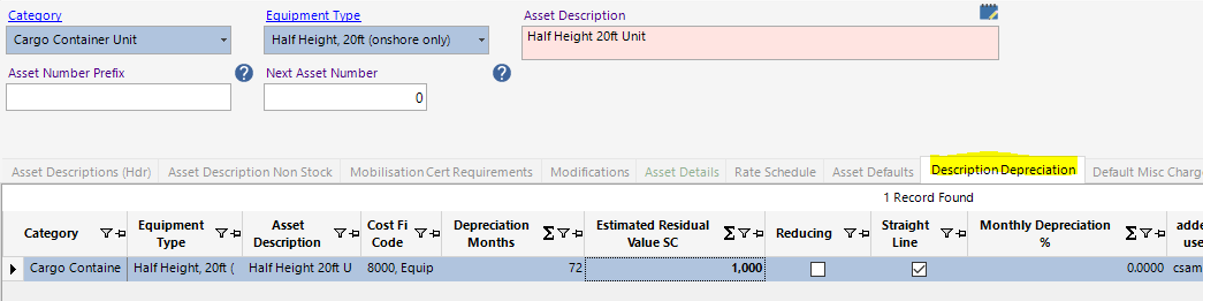
When you add in a new Asset Description or update an existing one to be a Fixed Asset the system will display a new tab called Description Deprecation providing you user has access to see it. If any Group Company Depreciation Defaults have been setup, the system will create a record automatically. Please ensure you review these records, as you may have to update some of the values.
Asset Details
When you add in a new Asset or update an existing one to be a Fixed Asset the system will display the Asset Depreciation and the Asset Value Adjustment tabs and Depreciation fields providing you user has access to see them.
If you have set up an Estimated Residual Value against the Description Depreciation dataset this will be pulled though onto the Asset record with the option to change it.
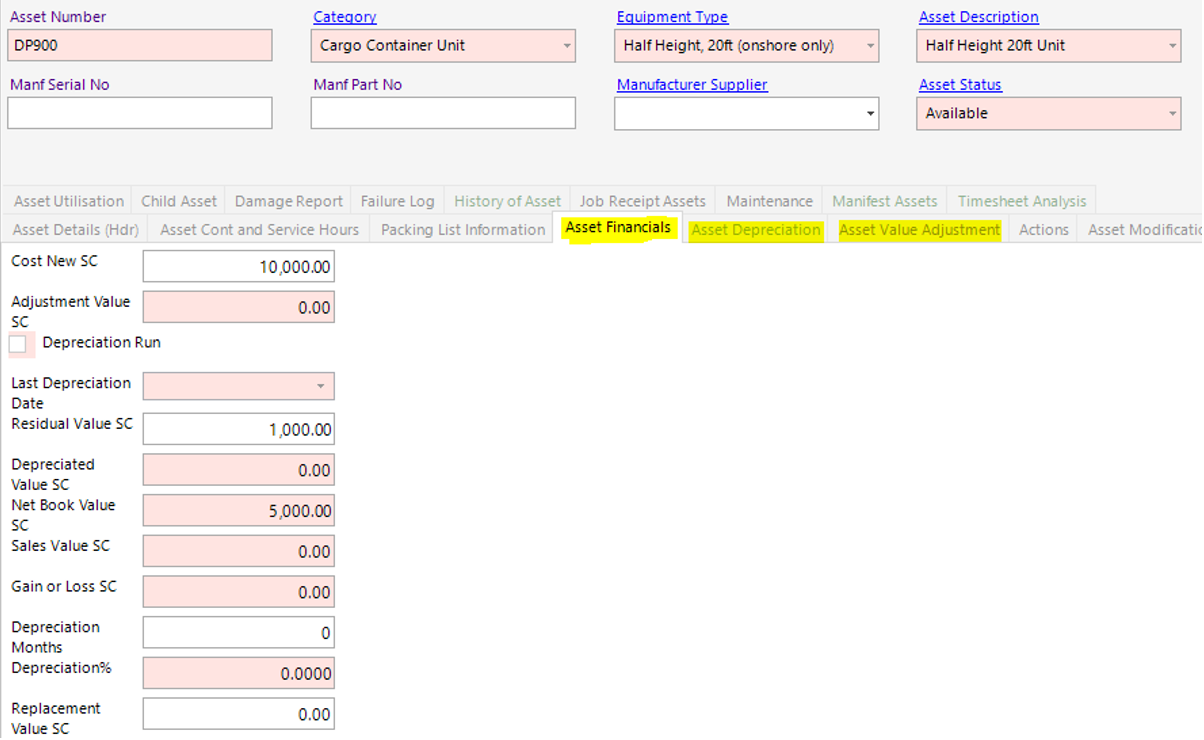
If you need to adjust the Depreciation Months or the Residual Value you can do so on the Asset Financial tab.
Asset Value Adjustment
If you need to adjust the value of the asset to include things like freight or labour etc. you can do this via the Asset Value Adjustment dataset.
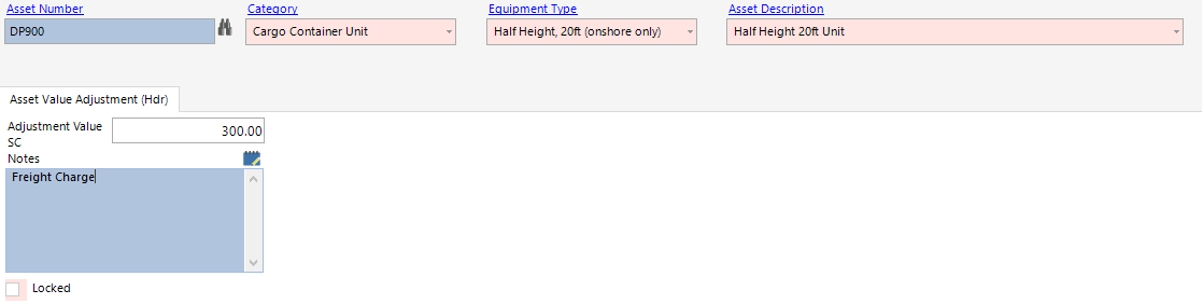
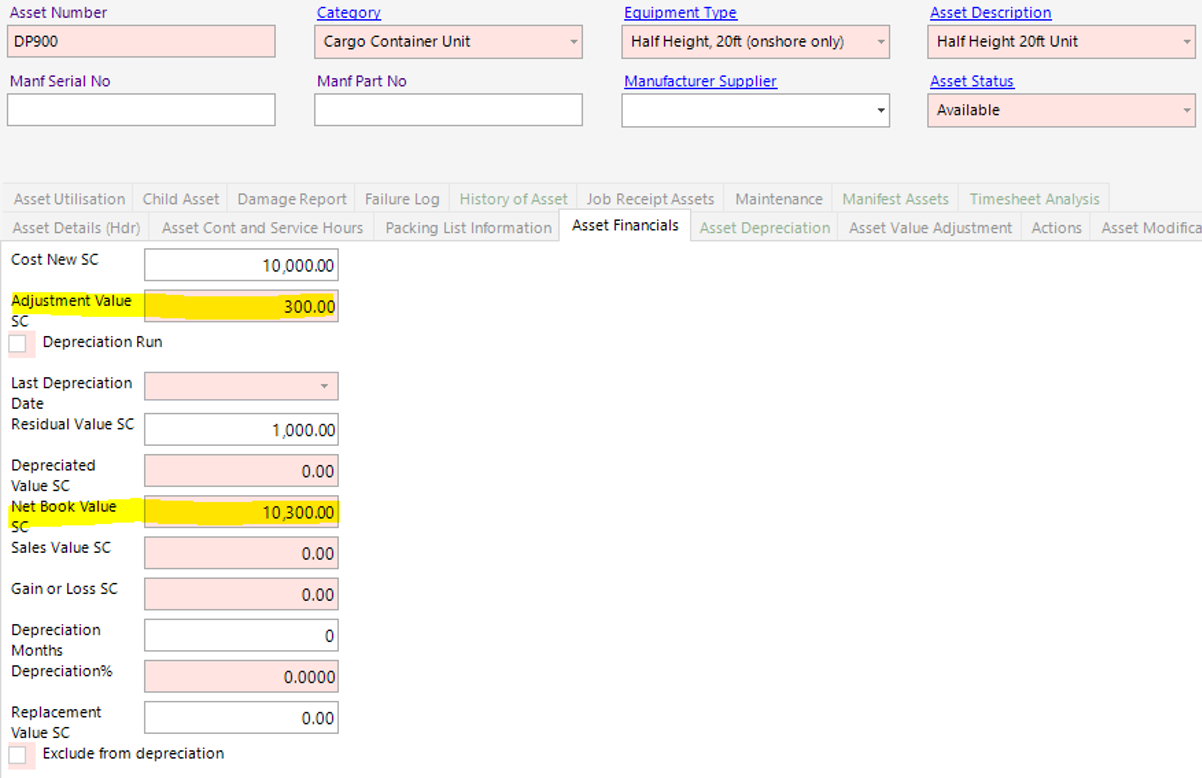
Any adjustments made will either increase or decrease the overall netbook value of the asset.
Carrying Out Depreciation
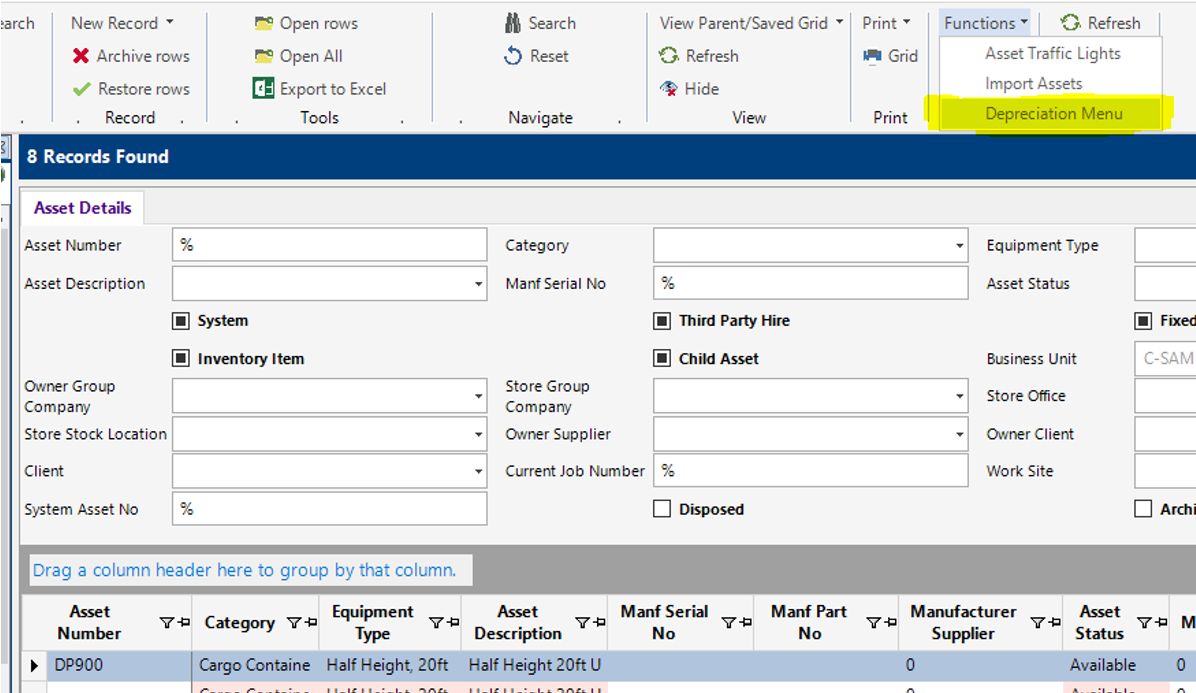
In order to access the deprecation menu you must be in the “Asset Depreciation” role. The Depreciation Menu can be found on the Functions menu within the Asset Details search screen.
Within the Depreciation Menu, select the group company you wish to depreciate against and then enter the date to depreciate up to.
Note: The system will only depreciate assets that have been ticked as a Fixed Asset, have a Net Book Value greater than zero, are not ticked as Third Party Hire, are not ticked as Exclude from Depreciation and the Asset Description has a Description Depreciation record against it.
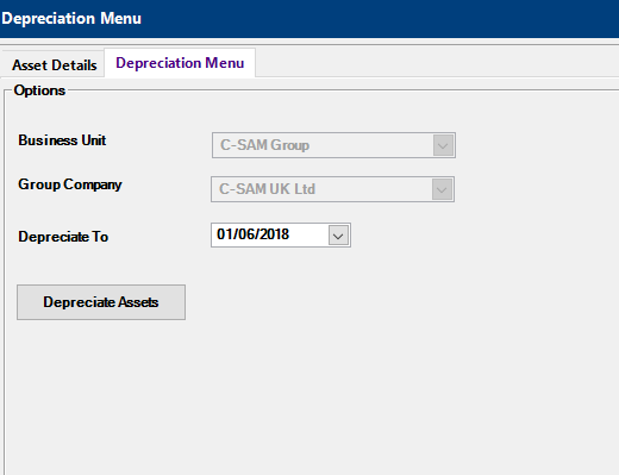
The system will inform you of how many assets have been depreciated.
Against the Asset Financials tab in the Asset Details record you will see the updated values.
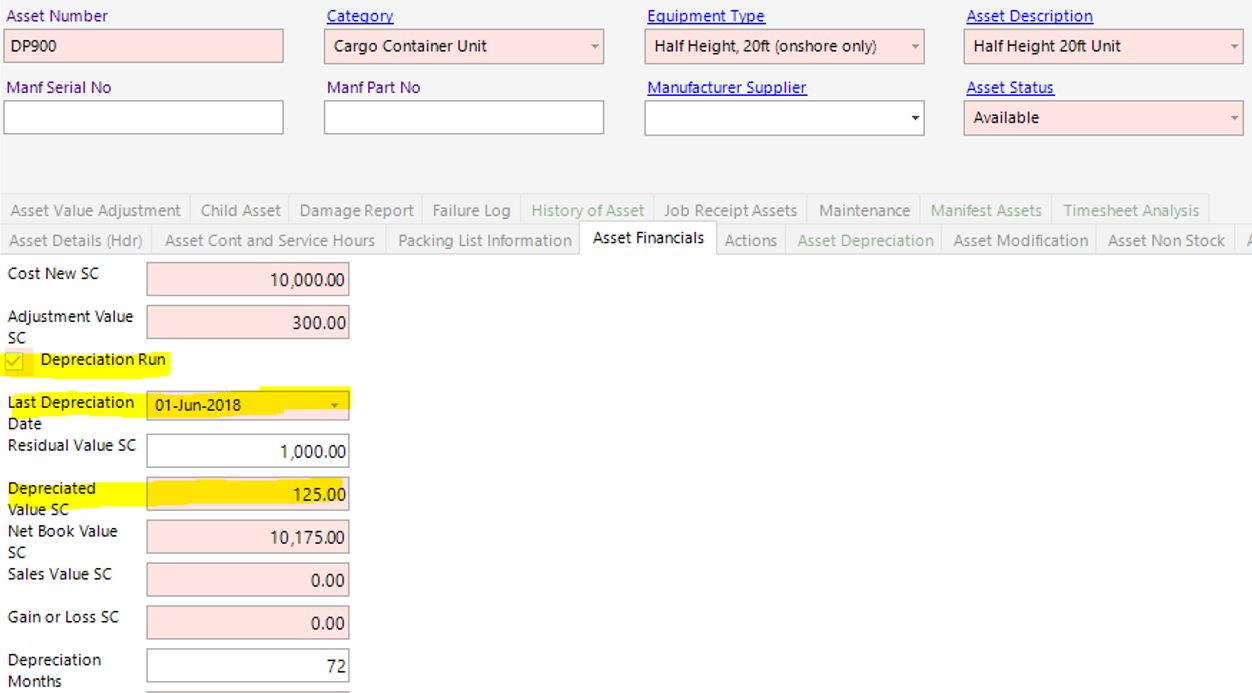
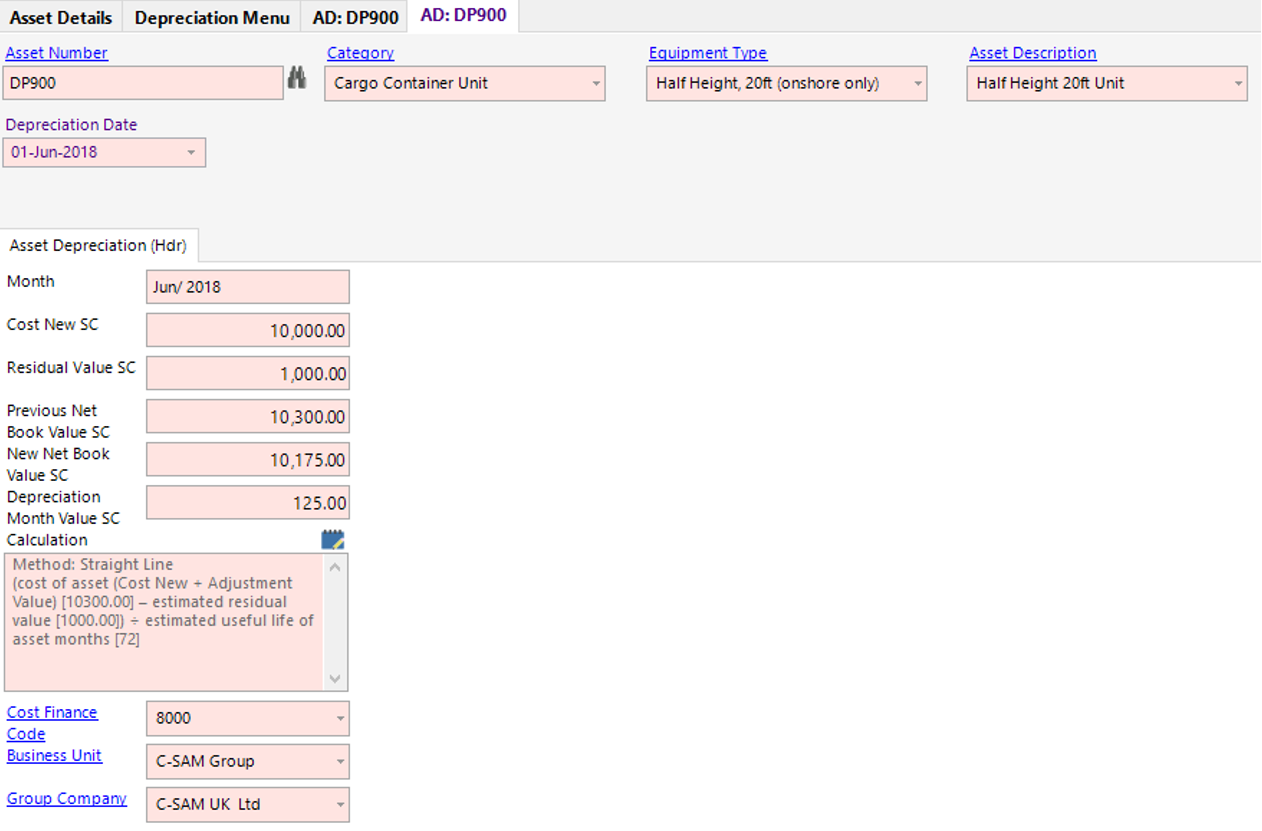
Also against the Asset Deprecation dataset you will see a record has been inserted. This record shows you a breakdown of how much the asset was depreciated that month and how the value was calculated.