
How to Amend an Invoice/Credit
Users within a specific role have the ability to amend invoice/credits within the system.
This would only be carried out if the invoice has not been officially submitted to the client. If it has been issued, the user will need to raise a full credit and re-invoice the client with the updated information.
Locate the Invoice
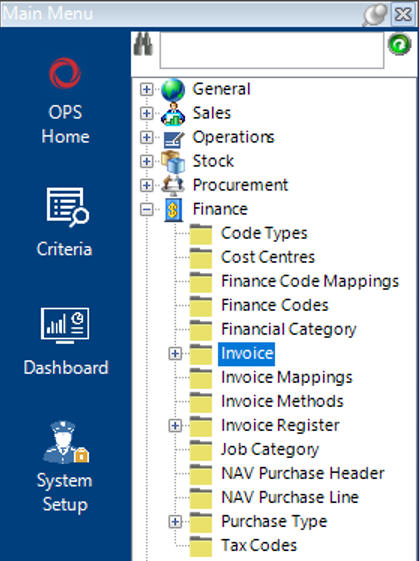
- Select the Finance category and then Invoice:
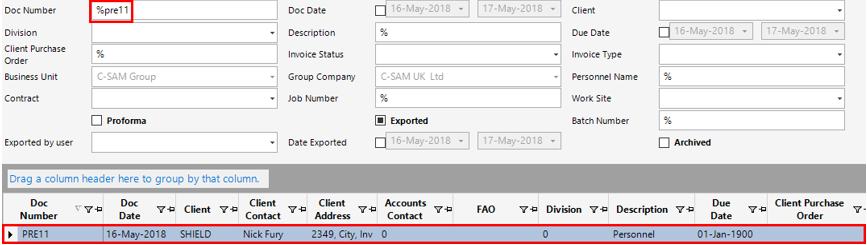
- Enter the Document Number into the Doc Number field as shown and either hit Enter on your keyboard or select Search to return the results in grid view:
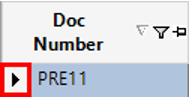
- Open the record by double clicking on the grey area to the left of the Doc Number column:
Note: You can also locate the Invoice by locating the Job within Job Details and selecting the Invoice tab:

Amend the Invoice/Credit
- From the Invoice record you have opened, select the Invoice Detail tab:
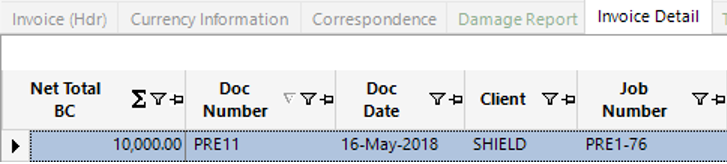
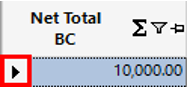
- Open the relevant record by double clicking on the grey area to the left of the Net Total BC column:
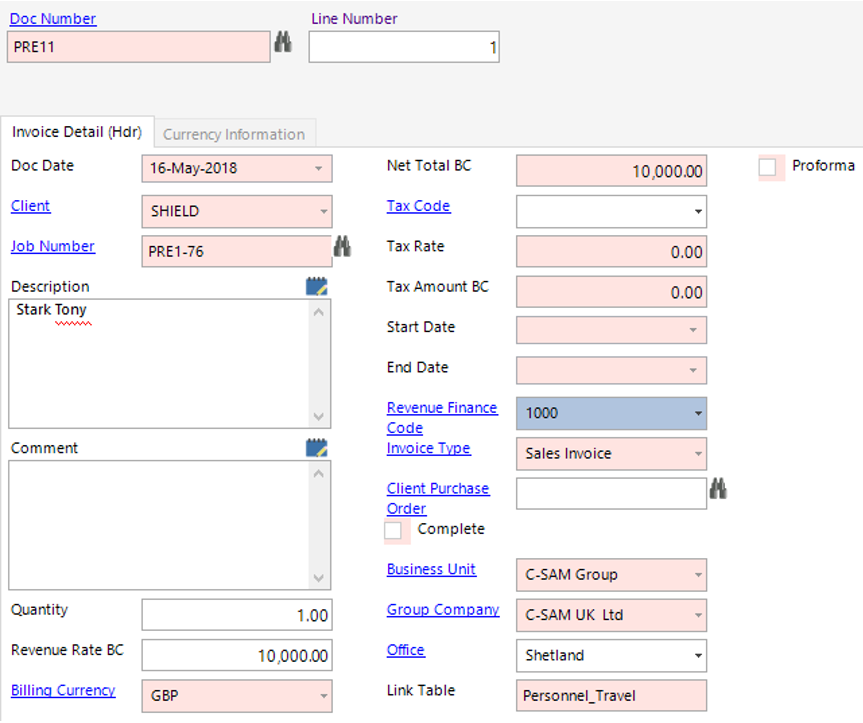
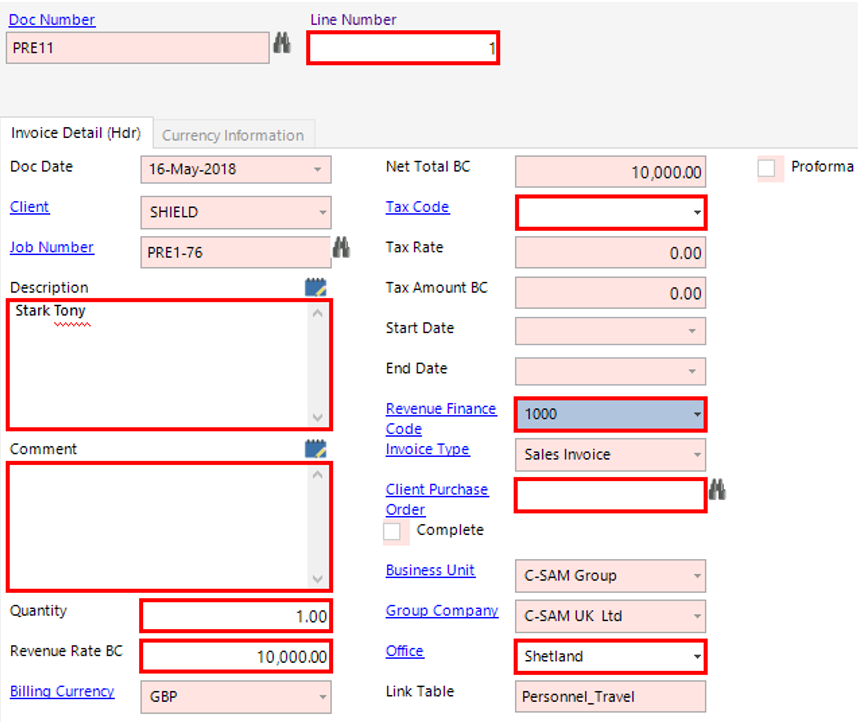
- Amend the relevant fields, fields highlighted in red can be altered within this record:
- Select Close from to return to the Invoice, select Print>Invoice/Credit.
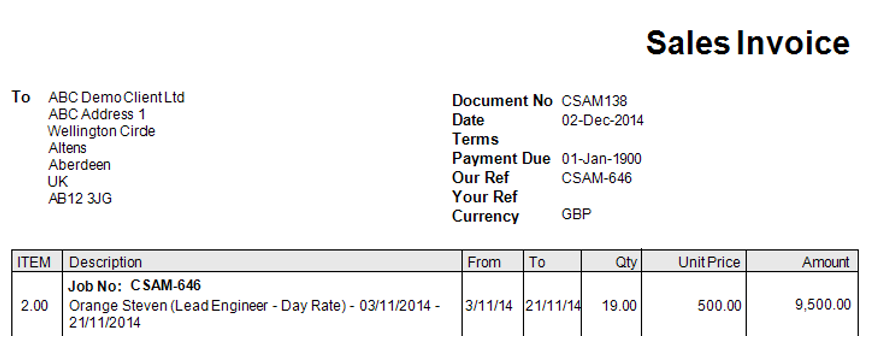
The Invoice has been now been amended and the same steps apply to a Credit type Invoice.