How to Create an Invoice Map
Invoice Maps are used to tailor how the functions within the Invoicing Menu pull through chargeable lines.
Example 1: A job has Equipment, Personnel and Expenses tied to it and the customer wants it all on the same Invoice. When setting up an Invoice Map for the client make sure you select all 3 chargeable types.
Example 2: A job has Equipment, Personnel and Expenses tied to it and the customer wants individual invoices. You will need to set up 3 individual mapping records for the client.
Note: There are only 3 Invoicing Methods available within the system, by Job Number, by Contract or by Purchase Order. These methods are set up and controlled by C-Sam Ltd and cannot be amended by any other users and must exist in the system before you can add an invoice map:
By Contract = The invoice will pull all chargeable lines where the contract number matches the mapping record, this may involve multiple job numbers and purchase orders.
By Job Number = The invoice will pull all chargeable lines from a Job and separate the invoices into each unique job number, this may involve multiple Purchase Orders and Contracts.
By Purchase Order = The invoice will pull all chargeable lines from a specific Purchase Order, this may involve multiple Job Numbers and Contracts.
Locate the Invoice Mapping Dataset
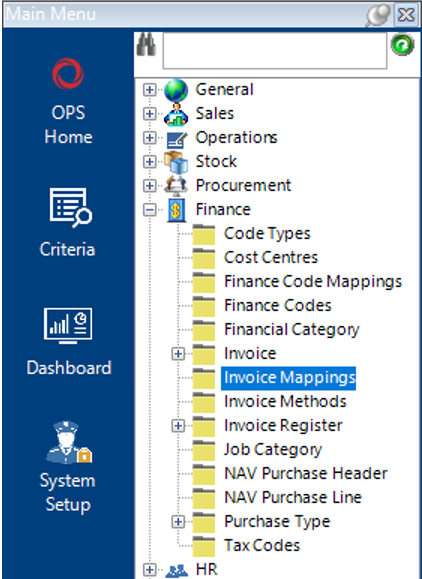
- Select the Finance category then Invoice Mapping:
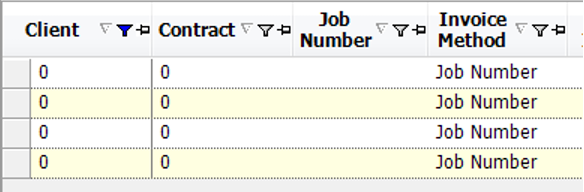
- Select Search, this will show all the invoice mapping records available within your system, see partial screen shot:
- To add a new record, select New Record>Invoice Mappings or hit Insert on your keyboard.
Create an Invoice Mapping Record
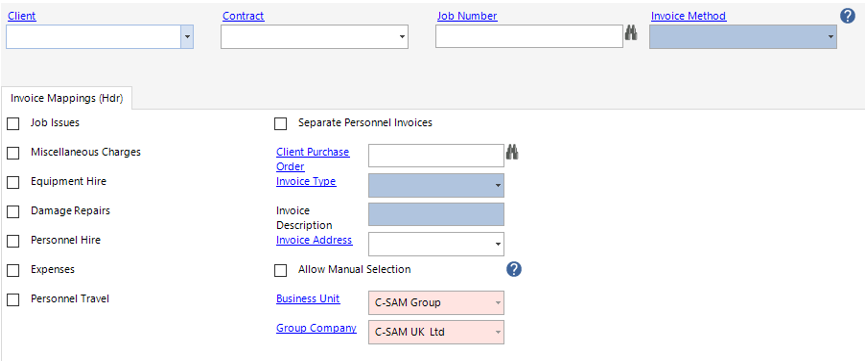
- Complete the relevant fields.
Note: (Pink = System Generated, Blue = Mandatory):
| Field | Description |
|---|---|
| Client | If the Invoice map is for a specific client, enter the name in this field |
| Contract | If the Invoice map is for a specific contract, enter the number here |
| Job Number | If the Invoice map is for a specific job number, enter the number here |
| Invoice Method | There are only 3 Invoice Methods available in the system, by Contract, by Job Number or by Purchase Order (see guide introduction for explanation of each type) |
| Invoice Mappings (Hdr) | |
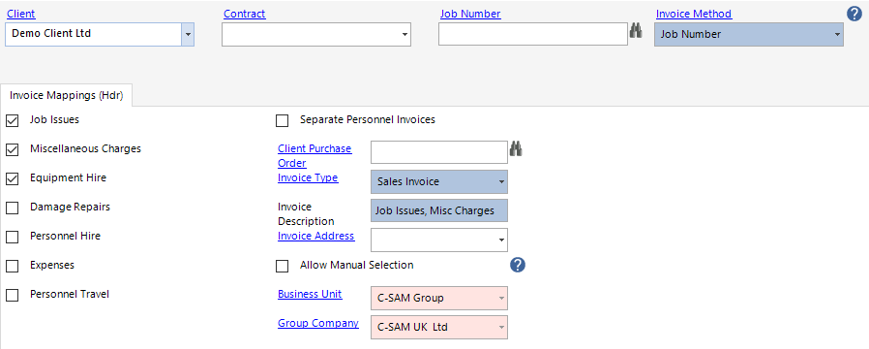
| Job Issues | Enable this tickbox to include Job Issues on the Invoice Mapping record |
| Miscellaneous Charges | Enable this tickbox to include Miscellaneous Charges on the Invoice Mapping record |
| Equipment Hire | Enable this tickbox to include Equipment Hire on the Invoice Mapping record |
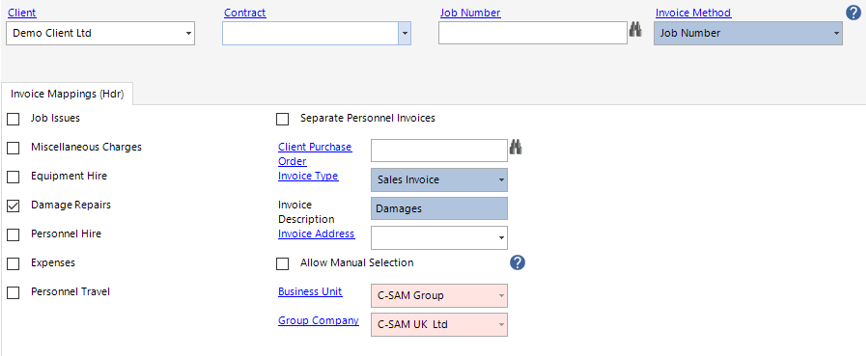
| Damage Repairs | Enable this tickbox to include Damage Repairs on the Invoice Mapping record |
| Personnel Hire | Enable this tickbox to include Personnel Hire on the Invoice Mapping record |
| Expenses | Enable this tickbox to include Expenses on the Invoice Mapping record |
| Personnel Travel | Enable this tickbox to include Personnel Travel on the Invoice Mapping record |
| Separate Personnel Invoices | Enabling this tickbox will create multiple invoices for Personnel you have on a job, for example: Joe Bloggs and Jane Bloggs on 1 job, you want an invoice per person, you must select this tickbox along with Personnel Hire, Personnel Travel (if required) and Expenses (if required) |
| Client Purchase Order | If the Invoice Mapping relates to a specific Client PO, enter the number in this field or use the lookup to search the system |
| Invoice Type | Select the relevant Invoice Type from the drop down, this title will appear as the header on the Invoice |
| Invoice Description | Enter the description of the Invoice Mapping record, ie, Personnel, Equipment and Misc Charges, this will not appear on the Invoice and is primarily for internal use to explain what the Invoice Mapping record covers |
| Invoice Address | Select an Invoice Address from the drop down if required |
| Allow Manual Selection | Enabling this tickbox will allows users within the Invoice Controller role to run invoices on an ad hoc basis instead, the Invoice Description will show as an option in Manual Selection drop down menu within the Invoicing Menu |
| Business Unit | This will be defaulted to the user’s Business Unit |
| Group Company | This will be defaulted to the user’s Group Company |
- Select Save.
The Invoice Mapping Record has been created, see the next section for examples.
Invoice Mapping Examples
I have set up 3 Mapping records for a specific customer. Each record is designed to pull through different chargeable lines for this customer. See examples for explanation:
Example 1: This Invoice Map will show Job Issues, Miscellaneous Charges and Equipment Hire on 1 invoice, filtered by Job Number and only for Demo Client Ltd:
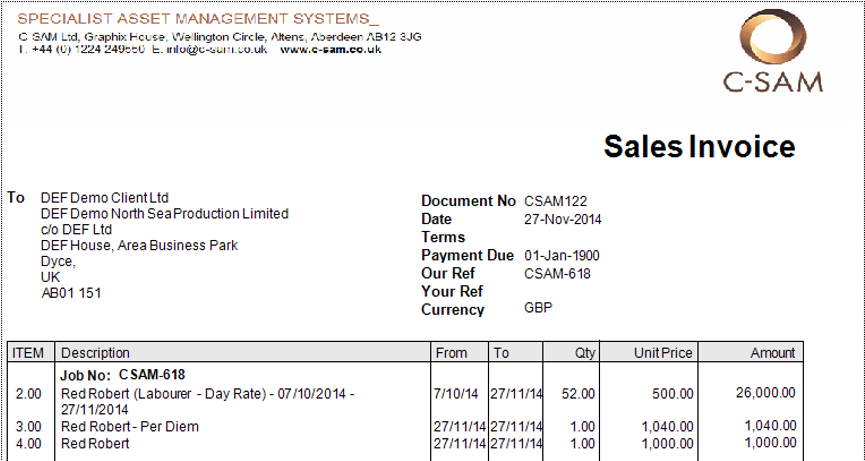
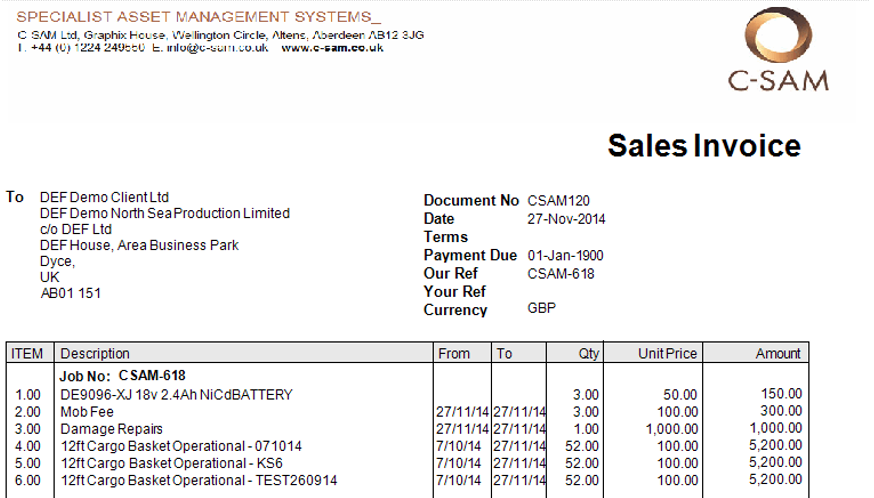
Invoice Sample shows Job Issues, Miscellaneous Charges and Equipment Hire on 1 invoice for Job Number CSAM-618:
Example 2: This Invoice Map will show Damage Repairs only on 1 invoice, filtered by Job Number and only for Demo Client Ltd:
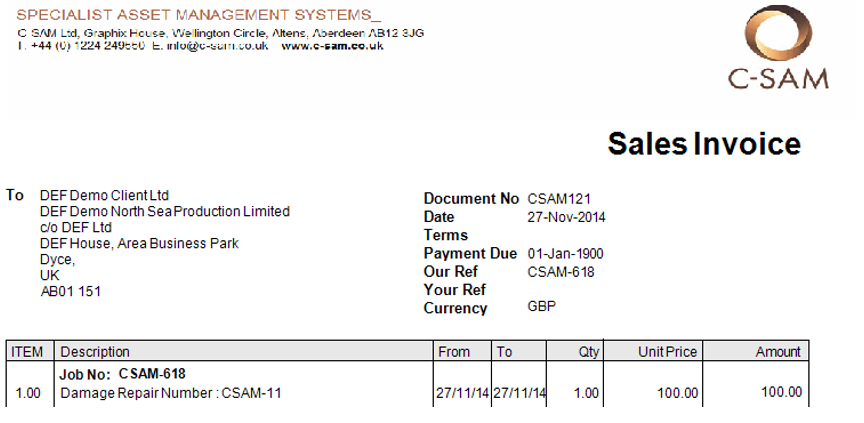
Invoice Sample shows 1 x Damage Repair change for Job Number CSAM-618:
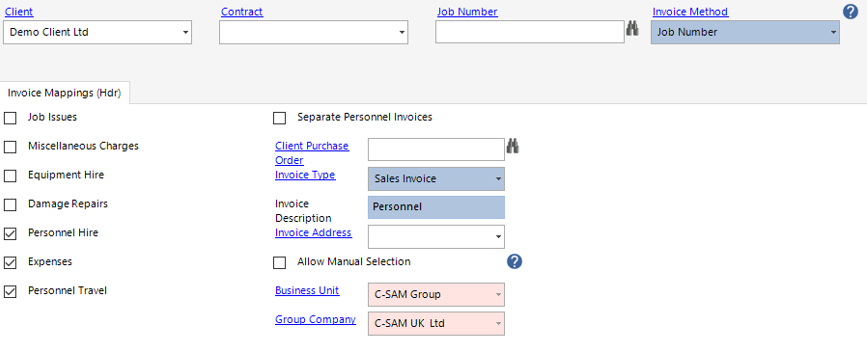
Example 3: This Invoice Map will show Personnel Hire, Expenses and Personnel on multiple invoices if there are multiple people on the job (the amount of people on the job should match the amount of invoices created), filtered by Job Number and only for Demo Client Ltd:
Invoice Sample shows 1st Personnel Name (Job had 2 people), this has pulled through the Day Rate, Personnel Travel and Expenses related to that 1 person for Job Number CSAM-618:
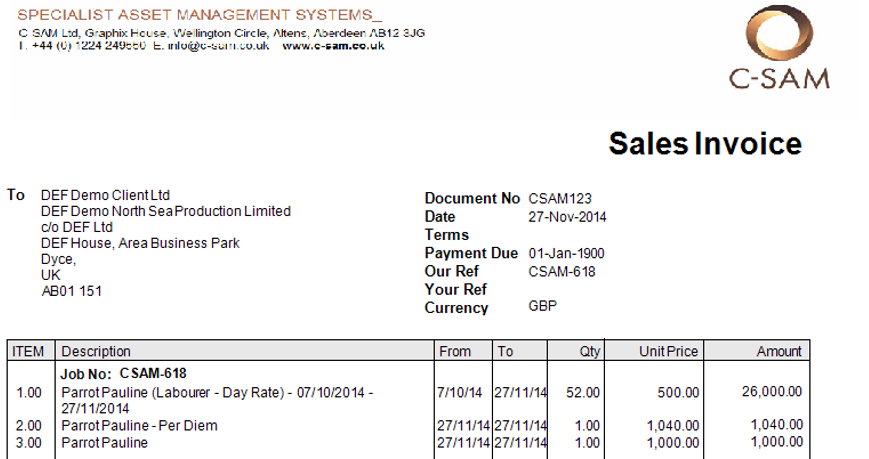
Invoice Sample shows 2nd Personnel Name (Job had 2 people), this has pulled through the Day Rate, Personnel Travel and Expenses related to that 1 person for Job Number CSAM-618 (note the name is different from the previous screen shot):