
How to Add Candidates to a Job Vacancy
Users within a specific role have the ability to add candidates to a job vacancy within the database.
Locate the Job Vacancy
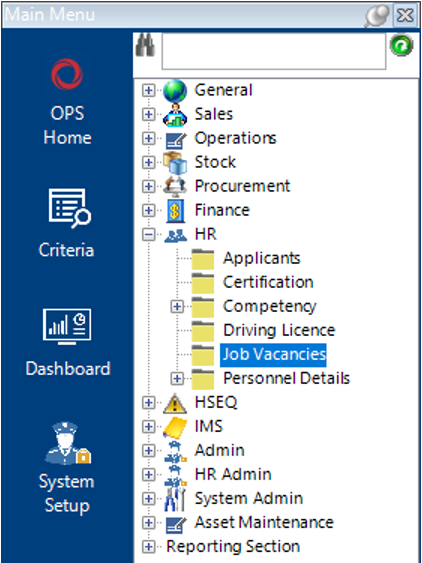
- From the main menu, select the HR category, then Job Vacancies:
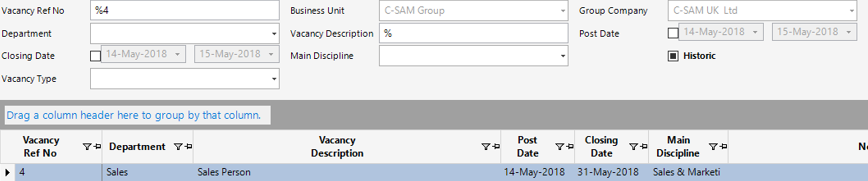
- Enter the Vacancy Ref No into the search field if know, otherwise enter as much search criteria as possible to locate the vacancy record:
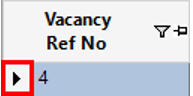
- Open the Vacancy record by double clicking on the grey area to the left of the Vacancy Ref No field as shown:
- Select New Record>Applicants or select the Applicants tab and hit Insert on your keyboard.
- Fill in the relevant fields.
Note: (Pink = System Generated, Blue = Mandatory):
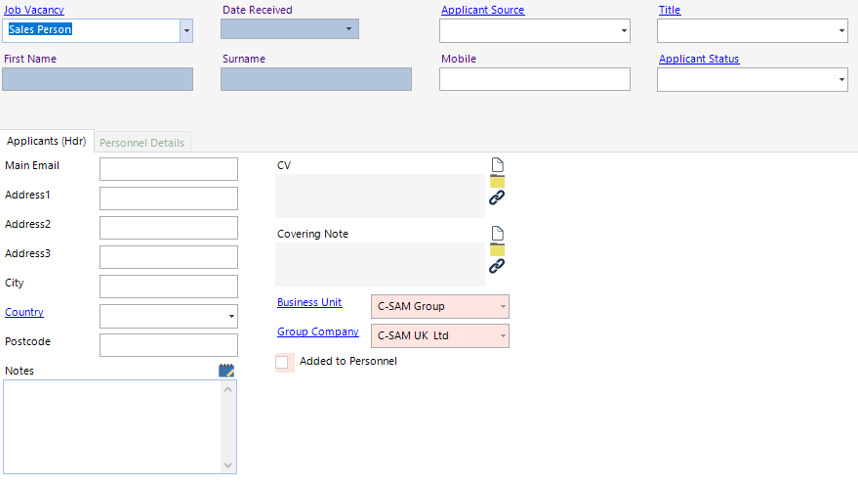
| Field | Description |
|---|---|
| Job Vacancy | This will default to the record you are in |
| Date Received | Select the date from the calendar |
| Applicant Source | Select the source from the drop down |
| Title | Select the candidate’s title |
| First Name | Enter the first name of the candidate |
| Surname | Enter the surname of the candidate |
| Mobile | Enter the mobile number for the candidate (if applicable) |
| Applicant Status | Select the relevant applicant status |
| Applicants (Hdr) | |
| Main Email | Enter the candidates main email address |
| Address 1 | Enter the first line of the candidate’s home address |
| Address 2 | Enter the second line of the candidate’s home address |
| Address 3 | Enter the third line of the candidate’s home address |
| City | Enter the city |
| Country | Select the candidate’s country |
| Postcode | Enter the postcode of the candidate’s address |
| Notes | Text field for additional notes |
| CV | CV’s can be linked via a file/folder/webpage |
| Covering Note | Covering notes can be linked via a file/folder/webpage |
Note: To add multiple candidates, select Next, repeat step 5 and then and follow step 6.
- Select Close, then Refresh to view the applicants in grid view:
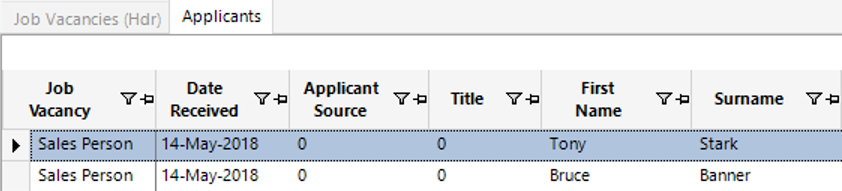
The applicants have now been added to the Job Vacancy.