
How to Cancel a PO
If the purchase order is no longer required, the user has the ability to cancel the PO as long as they have the Cancel PO role set up against their account.
How to Cancel a PO
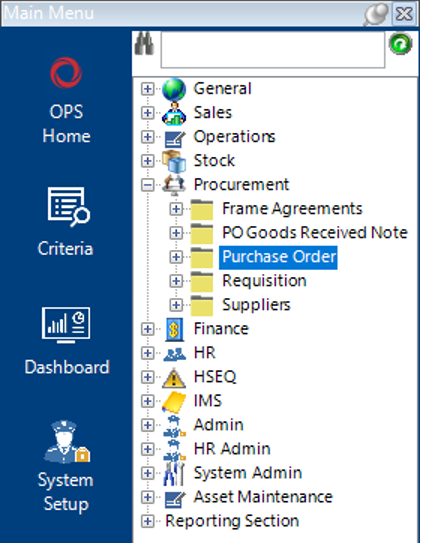
- Select the Procurement category, then Purchase Order:
- If you know the number of the PO you are looking for, type the unique number into the PO Number field and either select Search or hit Enter on your keyboard:
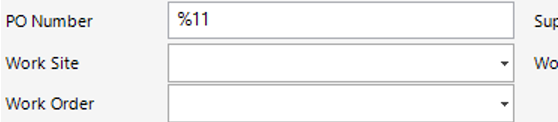
The record will appear in the grid:

If you do not know the unique number of the PO you need to open, enter as much information into the search criteria fields as you can and select Search.
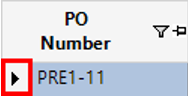
Once you have located the PO you need, double click on the box to left of the PO Number field to open the record:
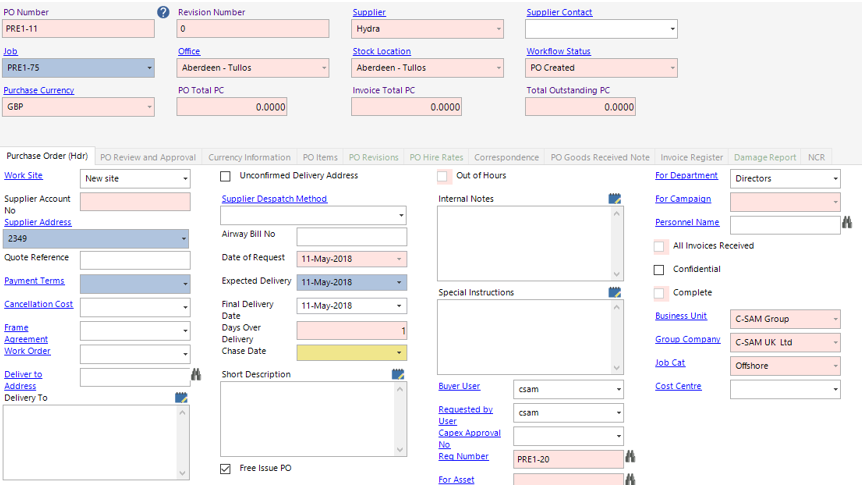
From this window, select Functions>Cancel PO.
Select Yes to continue with cancellation.
The field will now show in pink which cannot be changed in any way.
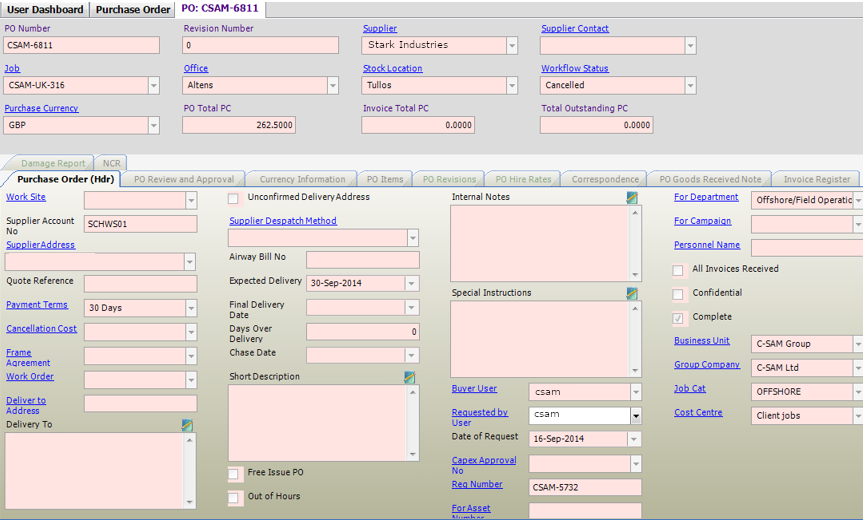
The PO has now been cancelled.