
How to Carry Out a Stock Take
Note: You will need the User Role Import Stock Take.
- On the Stock Balances dataset, search for the balances you want to count, normally this is done by entering in a stock location and searching but you can go further and select a type of equipment if you are only wanting to check the balances of certain items.
Highlight the records you want to export.
Run the Function Export Balances.
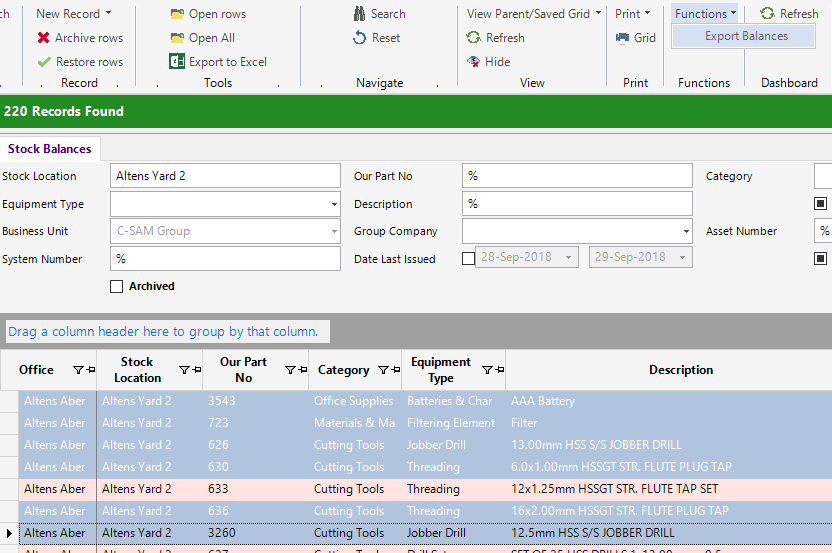
- This will export an Excel spreadsheet.
- Open the exported spreadsheet.
- Change the values in the Stock Take Amount to the values counted.
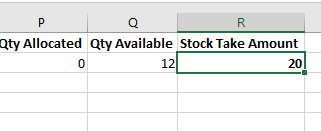
- Save and close the file.
- Back in OPS Rental go to the Stock Management dataset.
- Run the Function Import Stock Take.
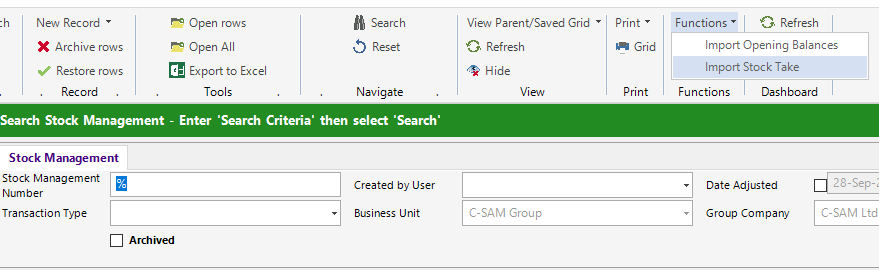
- Select the file you have just altered in steps 3-5.
- A message alerting you of the stock being updated will be displayed. Click OK. The modified spreadsheet and the record will both open. The spreadsheet will inform you of all the changes carried out.
When the record opens, check over the values.
- Run the Function Complete.
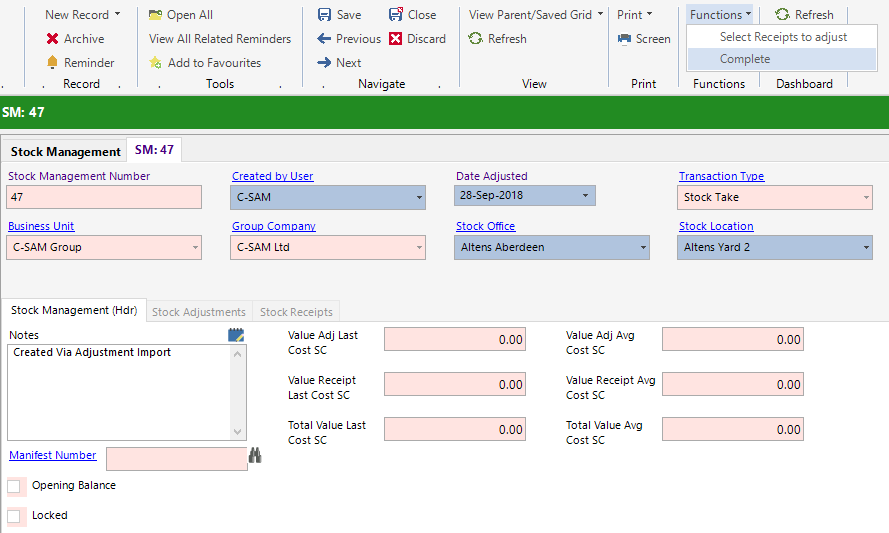
- Your Stock Take is now complete.