
How to Run Stock Valuation & Stock Movement Reports
Users within a specific role have the ability to run stock valuation & stock movement reports.
Stock Valuation reports will show the last cost price of stock sold within the period selected.
Stock Movement reports will show the movement of stock within the period selected.
How to Run a Stock Valuation Report
- Select the Stock category from the main menu, then select Stock:
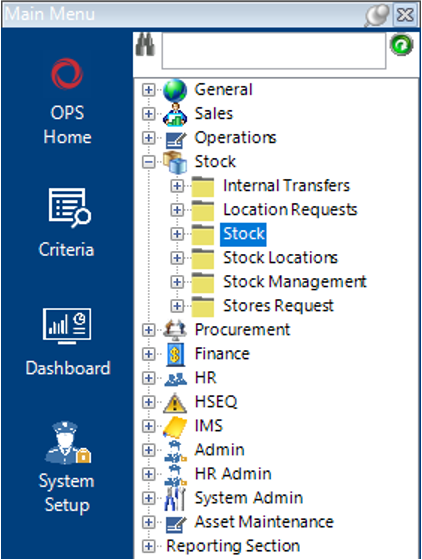
Then select Functions>Stock Menu.
- The screen will now look like this:
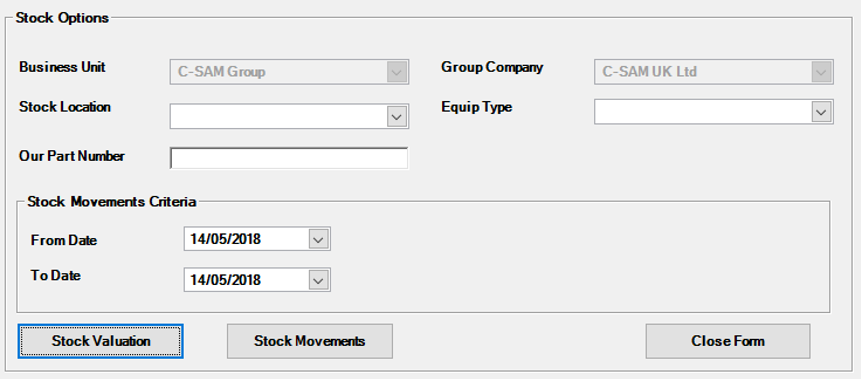
- Fill in the relevant fields.
| Field | Description |
|---|---|
| Business Unit | This will default to the user’s business unit, if not, select the relevant business unit |
| Group Company | This may default to the user’s group company, if not, select the relevant group company |
| Stock Location | The user can select a specific stock location or to return all stock locations, leave this field blank |
| Equip Type | The user can select a specific equipment type or to return all equipment types, leave this field blank |
| Our Part Number | The user can enter a specific part number, if all parts are required, do not enter anything into this field |
| From Date | Select a date from the calendar |
| To Date | Select a date from the calendar |
- Select the Stock Valuation button.
- Save the file to the desired location, rename if required.
- The file will automatically open.
How to Run a Stock Movement Report
- Follow Steps 1 to 3.
- Select the Stock Movements button.
- Save the file to the desired location, rename if required.
- The file will automatically open.