
How to Complete a Stores Request – Batched and Serialised Stock
Users within specific roles have the ability to complete stores requests.
The Stores Request will list the Stock/Assets required to be picked for a job.
Locate Open Stores Requests
An email will be sent to the relevant Stock Location email address to advise that a Stores Request has been raised to be actioned. Users in a specific role will also see any outstanding Stores Requests on their User Dashboard.
- From the User Dashboard select Incomplete Stores Requests:
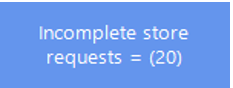
The system will show each outstanding Stores Request in Grid format:

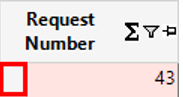
- Double click on the grey box to the left of the Request Number to open up the Stores Request:
How to Allocate Serialised Stock
- Select the Job Issues Tab, Open the record:
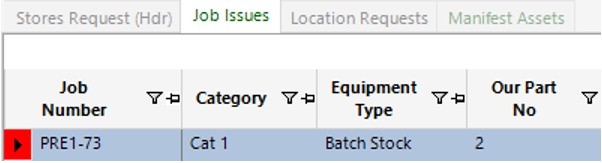
Note: To view multiple records, select Open All.
- From the Job Issue, select the Stock Issue tab, select New Record>Stock Issue or hit Insert on your keyboard.
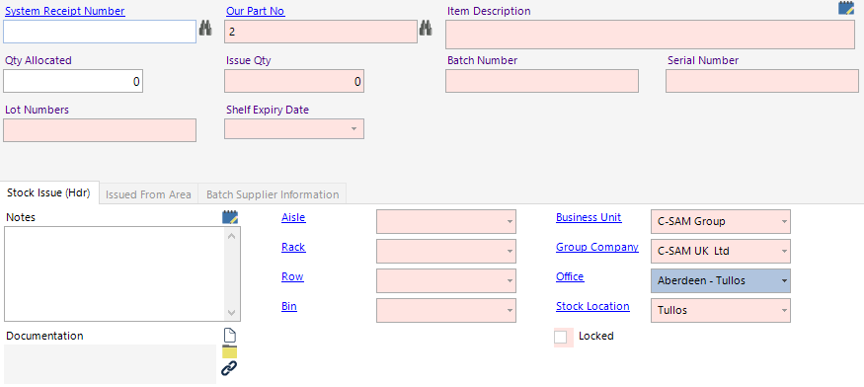
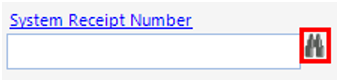
- Click on the binoculars to the right of the System Receipt Number field as shown to open up the Select Stock Receipts search screen:
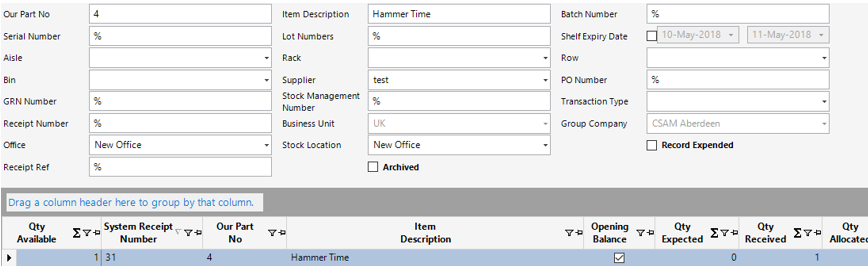
- Insert criteria on the search screen fields to narrow down your search of the batch or serialised stock as shown:
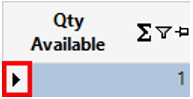
- Double click on the grey area to the left of the Qty Available column to assign this to your Stock Issue:
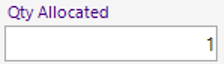
- Enter the Qty Allocated as shown:
Select Close to return to the Job Issue.
How to Allocate Batched Stock
- Select the Job Issues tab, open the record:
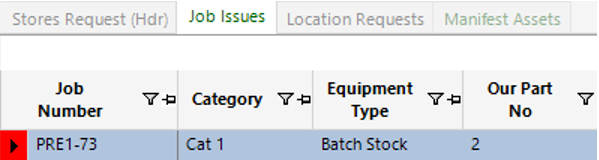
Note: To view multiple records, select Open All.
- From the Job Issue, select the Stock Issue tab, select New Record>Stock Issue or hit Insert on your keyboard:
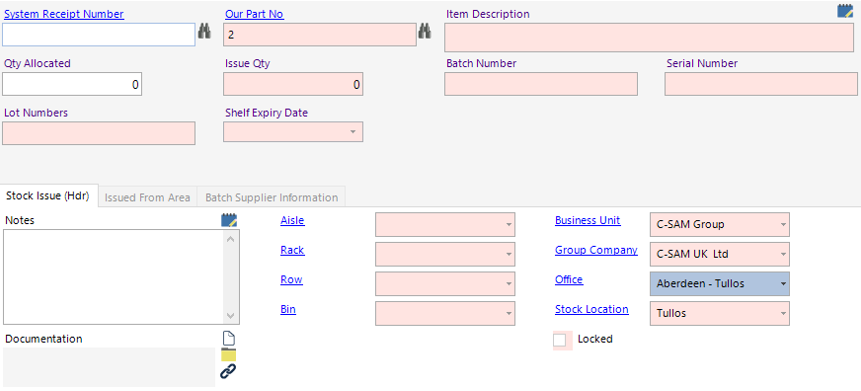
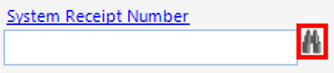
- Click on the binoculars to the right of the System Receipt Number field as shown to open up the Select Stock Receipts search screen:
- Insert criteria on the search screen fields to narrow down your search of the batch or serialised stock as shown:
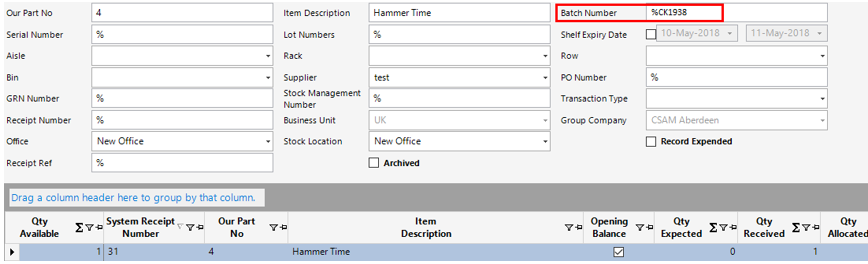
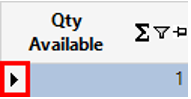
- Double click on the grey area to the left of the Qty Available column to assign this to your Stock Issue:
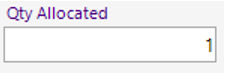
- Enter the Qty Allocated as shown:
Select Close to return to the Job Issues record.
Select Close again to return to the Stores Request record.
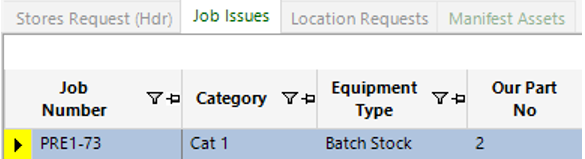
- Select Refresh, the Job Issues record(s) should now change from Red to Yellow:
How to Complete Stores Request
- Select Functions>Complete Request.
Select Yes to continue or No to cancel the operation.
Select Close to close the Stores Request.
The stores request will now change from Picking Status Added to Complete:

Note: Completed Stores Requests will be removed from the User Dashboard.