
How to Add Personnel Travel to a Job
The Personnel Travel dataset is used to record flights and accommodation information and can be linked to a Requisition, Purchase Order and Job in order to back charge the client.
Locate the Personnel Travel Dataset
Select the Operations category, then Time Planner:
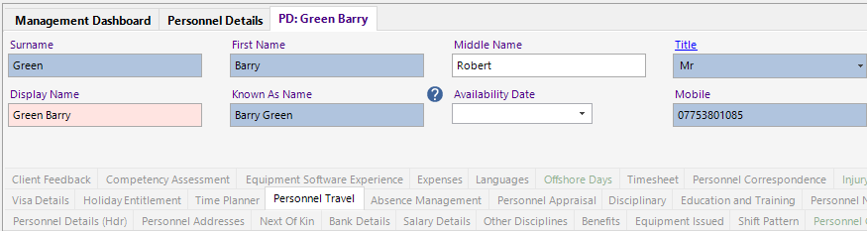
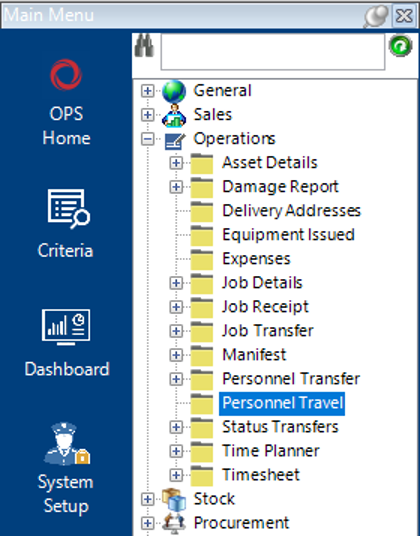
- Select the Operations category, then Personnel Travel or select the dataset via a Personnel Details record:
Add a Personnel Travel Record
- From the Personnel Travel dataset, select New Record>Personnel Travel or hit Insert on your keyboard.
- Fill in the relevant fields.
Note: (Pink = System Generated, Blue = Mandatory):
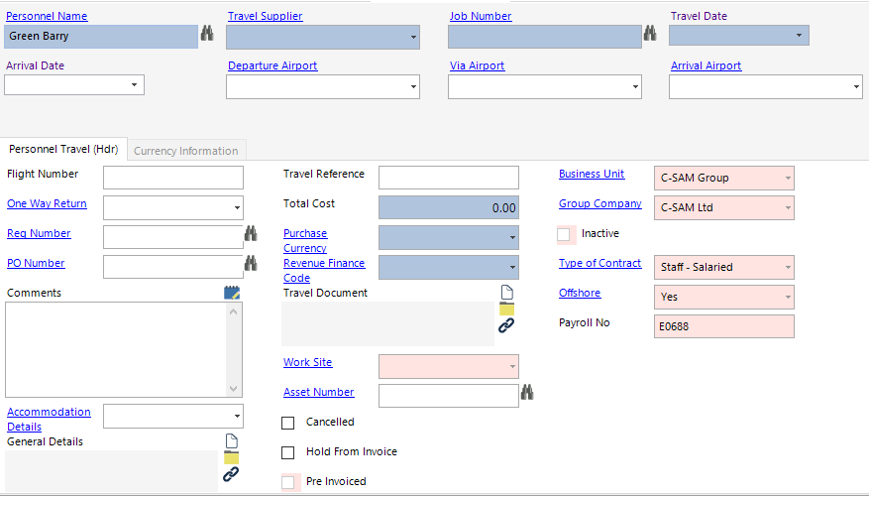
| Field | Description |
|---|---|
| Personnel Name | Enter or use the binoculars to assign the record to correct employee |
| Travel Supplier | Select the relevant supplier or add a new one if required |
| Job Number | Enter or use the binoculars to assign the record to the correct Job |
| Travel Date | Enter/Select the relevant travel date |
| Arrival Date | Enter/Select the relevant arrival date if required |
| Departure Airport | Select the relevant airport or add a new one if required |
| Via Airport | Select the relevant airport if travelling via a country |
| Arrival Airport | Select the relevant airport or add a new one if required |
| Personnel Travel (Hdr) | |
| Flight Number | Enter the flight reference if required |
| One Way Return | Select the relevant option |
| Req Number | If the record relates to a requisition, enter or use the binoculars to assign |
| PO Number | If the record relates to a po, enter or use the binoculars to assign |
| Comments | Text field to contain additional comments regarding the travel record |
| Accommodation Details | Select the relevant accommodation or add a new one if required |
| General Details | The user can link a file/folder/webpage if required |
| Travel Reference | Enter the relevant reference if required |
| Total Cost | Enter a value amount for the total cost which will appear on the client's invoice |
| Purchase Currency | Select the relevant currency used to pay for the travel |
| Revenue Finance Code | Select the relevant code |
| Travel Document | The user can link a file/folder/webpage to the travel document ie flights, hotel booking etc. |
| Asset Number | Select the relevant asset number if applicable |
| Cancelled | Enabling this tickbox will cancel the record |
| Hold from Invoice | Enabling this tickbox will hold the record from showing on the Invoice |
| Business Unit | Defaulted to the user logged in |
| Group Company | Defaulted to the user logged in |
Select Save.
The Personnel Travel record has now been added to the system and will link to the Req, PO, Job or Asset if details have been entered against the fields.