
How to Change an Asset Number
Users within specific roles have the ability to change asset numbers within the system.
Locate the Asset
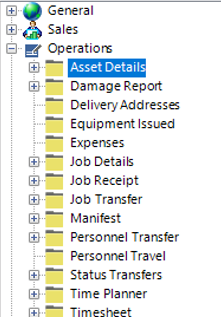
- From the main menu, select Operations, then Asset Details:
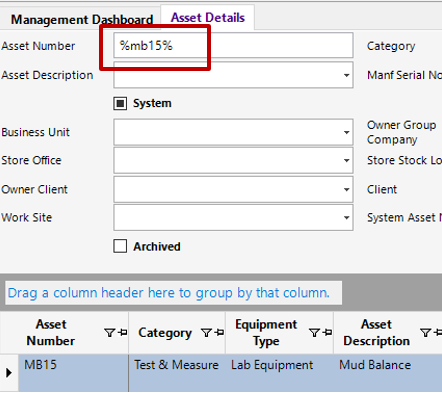
- Enter the Asset Number into the field shown and select Search or hit enter on your keyboard to return the results:
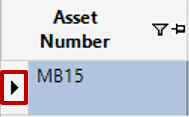
- To open the asset, double click on the grey area to the left of the Asset Number column as shown:
Change an Asset Number
- From the Asset Details screen, select Functions>Change Asset Number.
- Select Yes to receive a new asset number generated from the system (if set up) as shown, the new asset number is MB16:
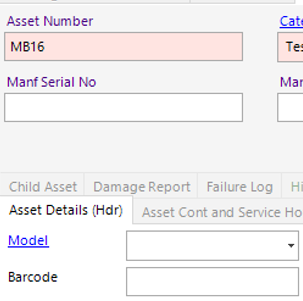
The old asset number has now been recorded in the Old Asset Number field.
Or Select No to create the new Asset Number manually.
Enter the new Asset Number and select OK:
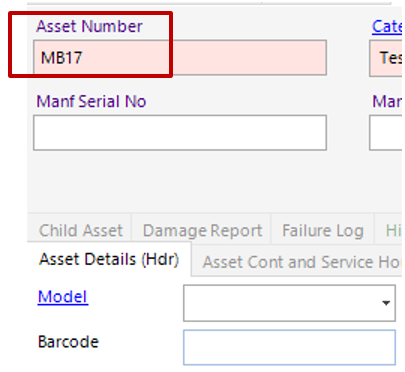
The Asset Number has now been changed.