
How to Create a Contract
Users within a specific role have the ability to create contracts within the system.
Locate the Contracts Dataset
- Select Sales from the main menu, then Contracts:
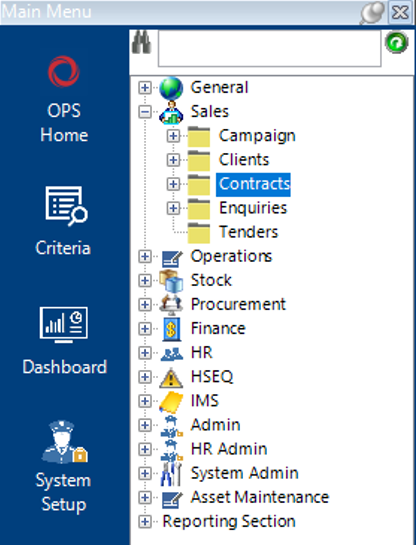
Create a Contract
- Select New Record>Contracts or hit Insert on your keyboard.
- Fill in the relevant fields:
Note: (Pink = System Generated, Blue = Mandatory):
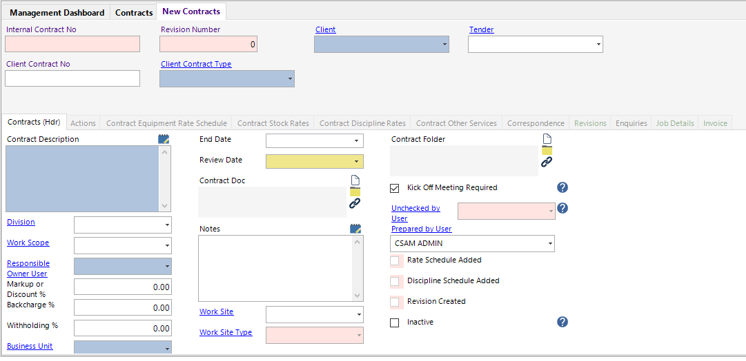
| Field | Description |
|---|---|
| Client | Select the relevant client for whom the contract relates |
| Tender | Select a tender (if applicable) |
| Client Contract No | Enter the contract number (if known/applicable) |
| Client Contract Type | Select the relevant contract type, for example, Personnel or Equipment type |
| Contracts (Hdr) | |
| Contract Description | Text field to record the contract description |
| Division | Select the relevant division |
| Work Scope | Select the relevant work scope (if applicable) |
| Responsible Owner User | Select the relevant user |
| Markup or Discount % | Enter a percentage value (if applicable). The percentage entered in this field will be used to mark up or discount the standard rates for personnel and equipment added to the contract using the function |
| Backcharge % | Enter a percentage value (if applicable) |
| Withholding % | Enter a percentage value (if applicable) |
| Billing Currency | Select the relevant currency, this cannot be changed once the contract is saved |
| Start Date | Select the start date from the calendar |
| End Date | Select the end date from the calendar |
| Review Date | Select the review date (if applicable) |
| Contract Doc | The user can link the contract file/folder/webpage to the system |
| Notes | Text field to contain additional notes regarding the contract |
| Work Site | Select the relevant work site (if applicable) |
| Contract Folder | The system will create a path to the contract folder when contract is created |
| Kick Off Meeting Rqd | If this is ticked the system will automatically set up a correspondence record for a kick off meeting |
| Prepared by User | This will default to the user creating the contract, however can be amended if required |
| Inactive (Tickbox) | Check this if the contract is inactive |
- Select Save.
Assign Rates via Function
- To assign the relevant rates to the contract, select Functions>Create Rate Schedule.
Select Yes to continue, No to cancel the operation.
Select OK for each information dialog box.
Add Rates Manually
This is used to only apply Contract Rates to specific Equipment, Stock and Personnel.
Rates can be added manually for Equipment (See Step 6), Stock (See Step 7) and Personnel (See Step 8) to a contract.
- Select the Contract Equipment Rate Schedule tab, select New Record>Contract Equipment Rate Schedule or hit Insert on your keyboard.
Fill in the relevant fields.
Note: (Pink = System Generated, Blue = Mandatory):
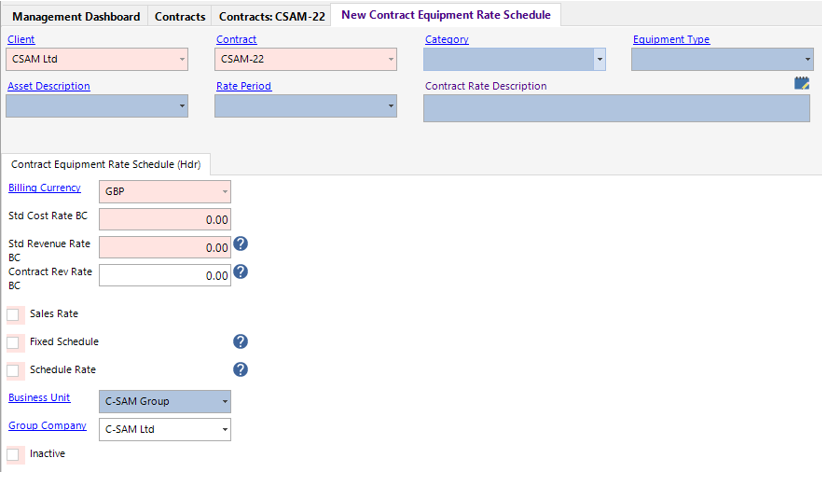
| Field | Description |
|---|---|
| Category | Select the relevant category (If not available, add a new category) |
| Equipment Type | Select the relevant equipment type (If not available, add a new equipment type) |
| Asset Description | Select the relevant asset description (If not available, add a new asset description) |
| Rate Period | Select the relevant rate period |
| Contract Equipment Rate Schedule (Hdr) | |
| Contract Rev Rate BC | Enter the revenue rate in billing currency |
| Business Unit | This will default to the user’s business unit |
| Group Company | This will default to the user’s group company |
Select Save from the toolbar, use Next to add additional records, then Close to return to the Contracts dataset.
- Select the Contract Stock Rates tab, select New Record >Contract Stock Rates or hit Insert on your keyboard.
Fill in the relevant fields.
Note: (Pink = System Generated, Blue = Mandatory):
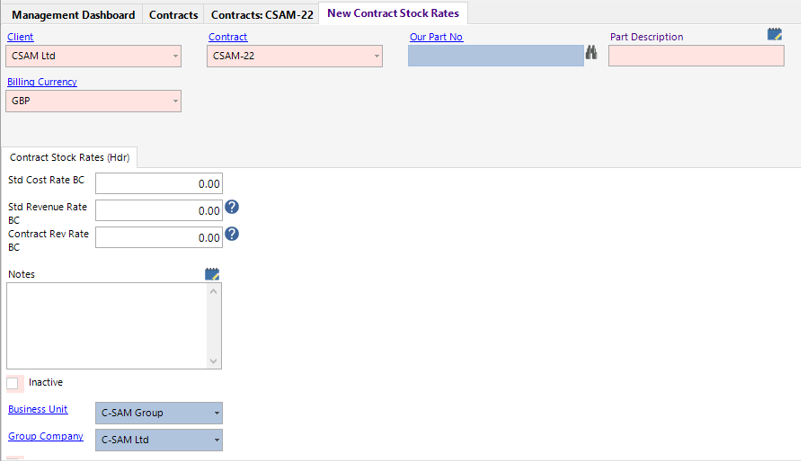
| Field | Description |
|---|---|
| Our Part No | Either manually enter the part number, or select the binoculars to open the select stock screen |
| Contract Stock Rates (Hdr) | |
| Std Cost Rate BC | This will be defaulted from the Stock record, if not, enter the cost rate in billing currency |
| Std Revenue Rate BC | This will be defaulted from the Stock record |
| Contract Rev Rate BC | Enter the revenue rate in billing currency |
| Notes | Text field to record additional stock rate information |
| Business Unit | This will default to the user’s business unit |
| Group Company | This will default to the user’s group company |
Select Save, use Next to add additional records, then Close to return to the Contracts dataset.
- Select the Contract Discipline Rates tab, select New>Contract Discipline Rates or hit Insert on your keyboard.
Fill in the relevant fields.
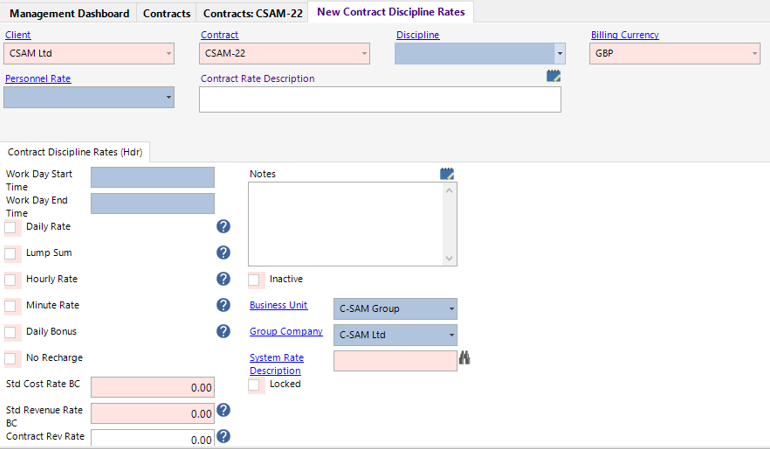
Note: (Pink = System Generated, Blue = Mandatory):
| Field | Description |
|---|---|
| Discipline | Select the relevant discipline |
| Personnel Rate | Select the relevant personnel rate (day, hourly, per diem etc.) |
| Contract Discipline Rate (Hdr) | |
| Std Cost Rate BC | This will be defaulted from the Standard Discipline Rates |
| Std Revenue Rate BC | This will be defaulted from the Standard Discipline Rates |
| Contract Rev Rate BC | Enter the revenue rate in billing currency |
| Notes | Text field to record additional stock rate information |
| Business Unit | This will default to the user’s business unit |
| Group Company | This will default to the user’s group company |
Select Save from the toolbar, use Next to add additional records, then Close to return to the Contracts dataset.